

Print layouts
Labels are printed in batches from the Dashboard or Print Queue — not one-by-one after each intake registration.Needs label
On the Dashboard Find & print filters, use the Needs label chip (next to Active) to show only students who have never appeared in print history.
The amber Needs label — never printed banner at the top of Find & print uses the same rule and shows the newest students first, with View all to apply the chip filter.
What appears on each label
The 5-digit sequence is the position in this print job, not the 7-digit counter inside the Label ID. Content is packed to the top of each sticker so name, sequence, barcode, and QR stay visible on a hanging-file tab.
Recommended print path (Avery)
- On the Dashboard, click Needs label (optional) so you only see students who still need a first print.
- Select students (or use Print All), or open Daily → Print Queue.
- Open the label preview and choose Avery 5163 or 94205.
- Click Download Word Doc.
- Open the file in Microsoft Word and print on Letter (8.5”×11”) at 100% scale with margins None.
- Back in the app, confirm Yes — mark as printed (or No if the sheet failed so they stay on Needs label).
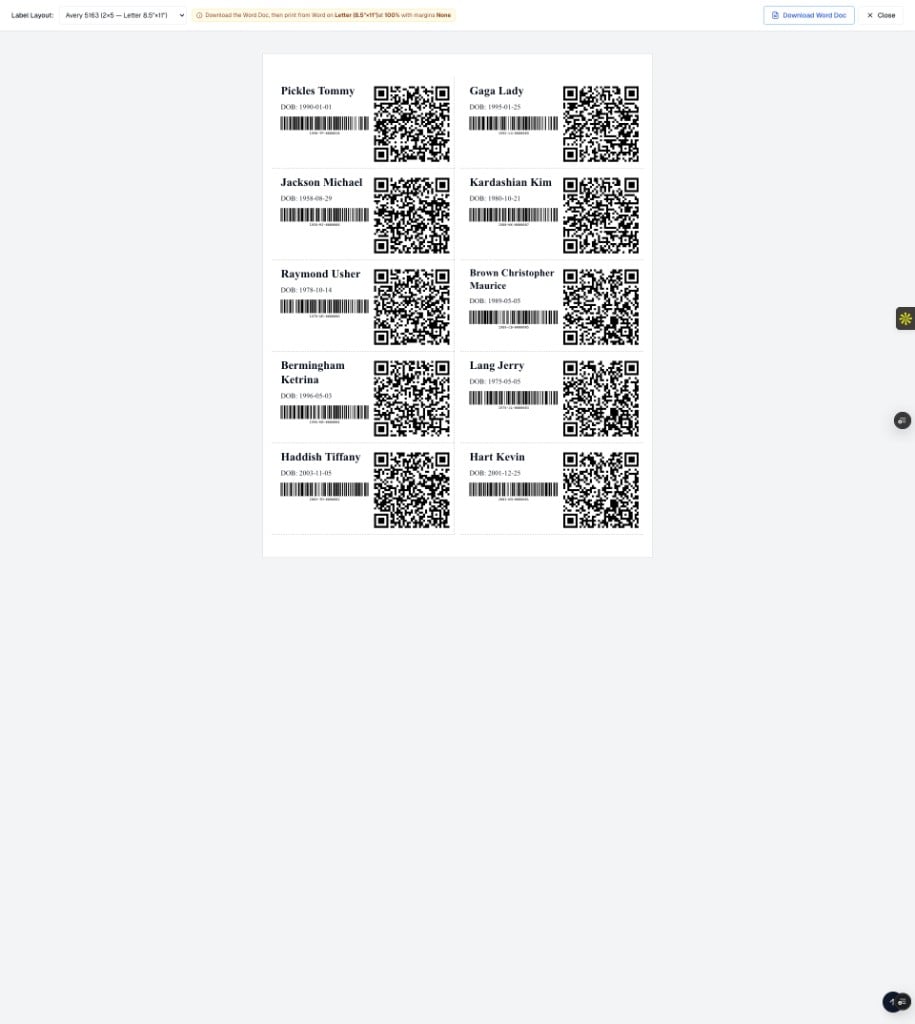
Avery 5163 preview — name, DOB, sequence, barcode, and QR per label
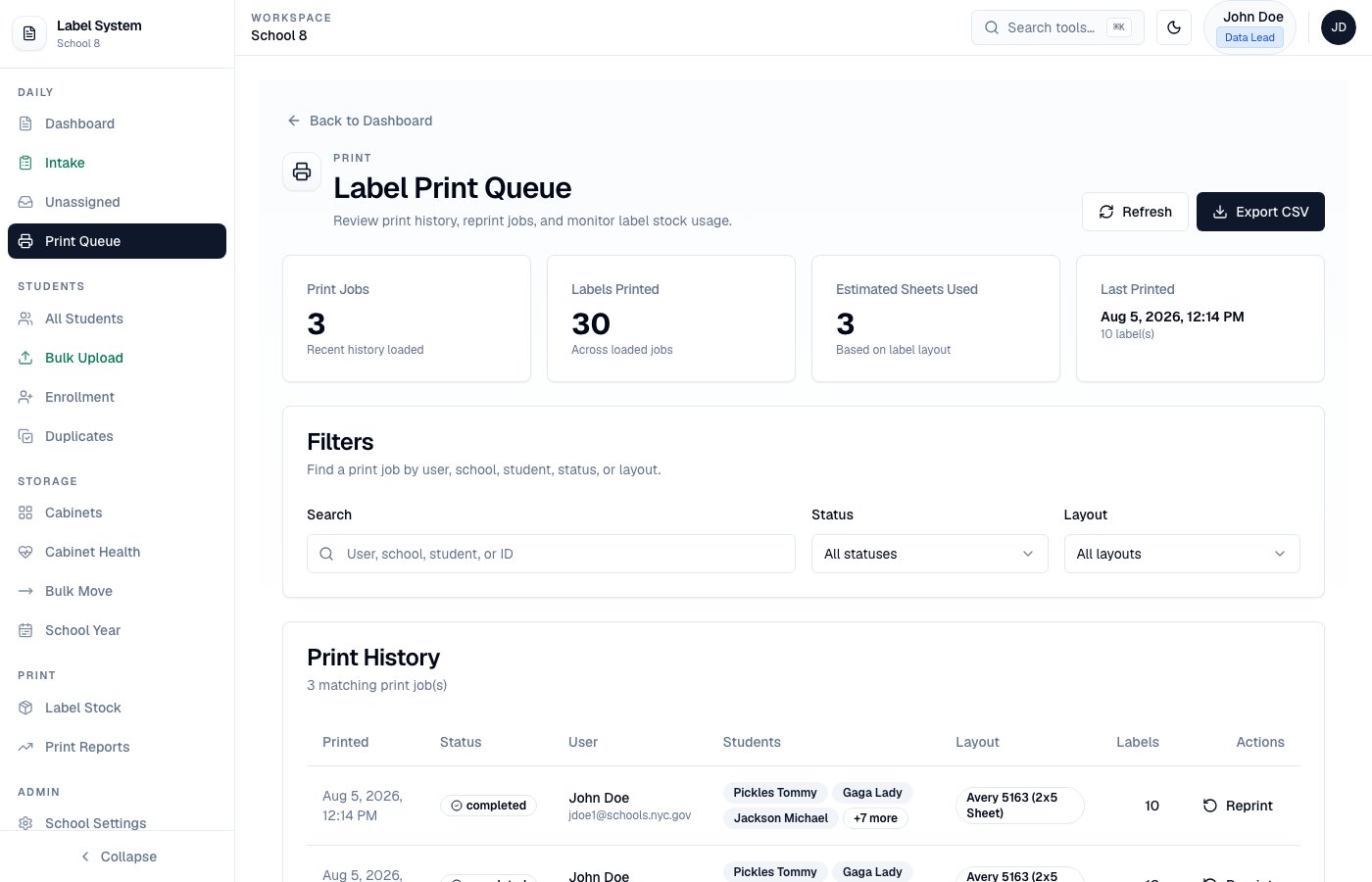
Daily → Print Queue — batch label printing
Intake success shows a registration/visit summary only — not a label print dialog. Use Download Word Doc from the Dashboard / Print Queue after selecting the students you need.
Label stock inventory
Admins and Data Leads track Avery inventory under Print → Label Stock. Stock decreases when staff confirm labels printed successfully — not on preview alone, and not on Word download alone. See Label stock.Student QR codes
Scanning a student label QR opens a public detail page: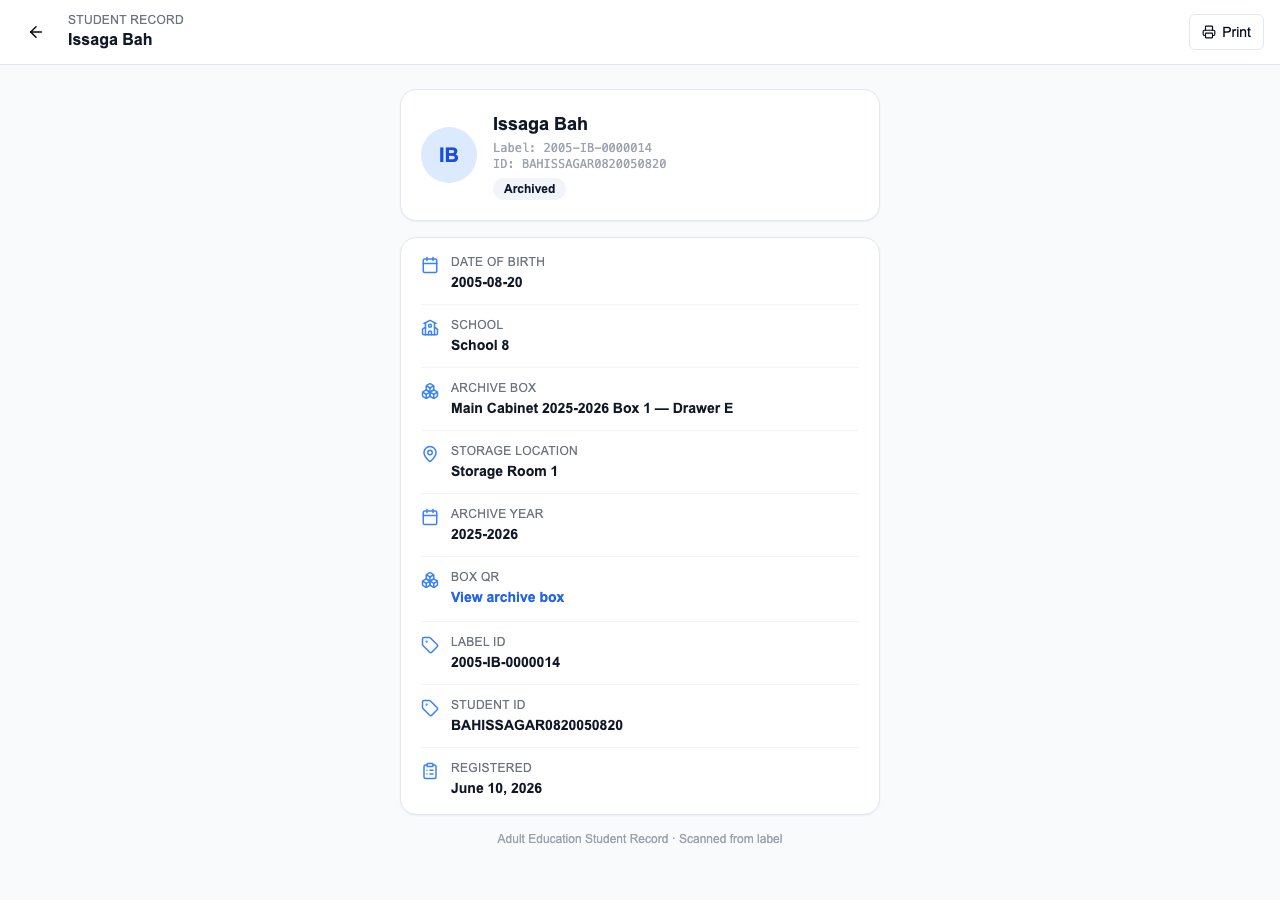
Public student page from a scanned label QR
Archive box QR codes
Physical archive box labels include a separate QR that opens: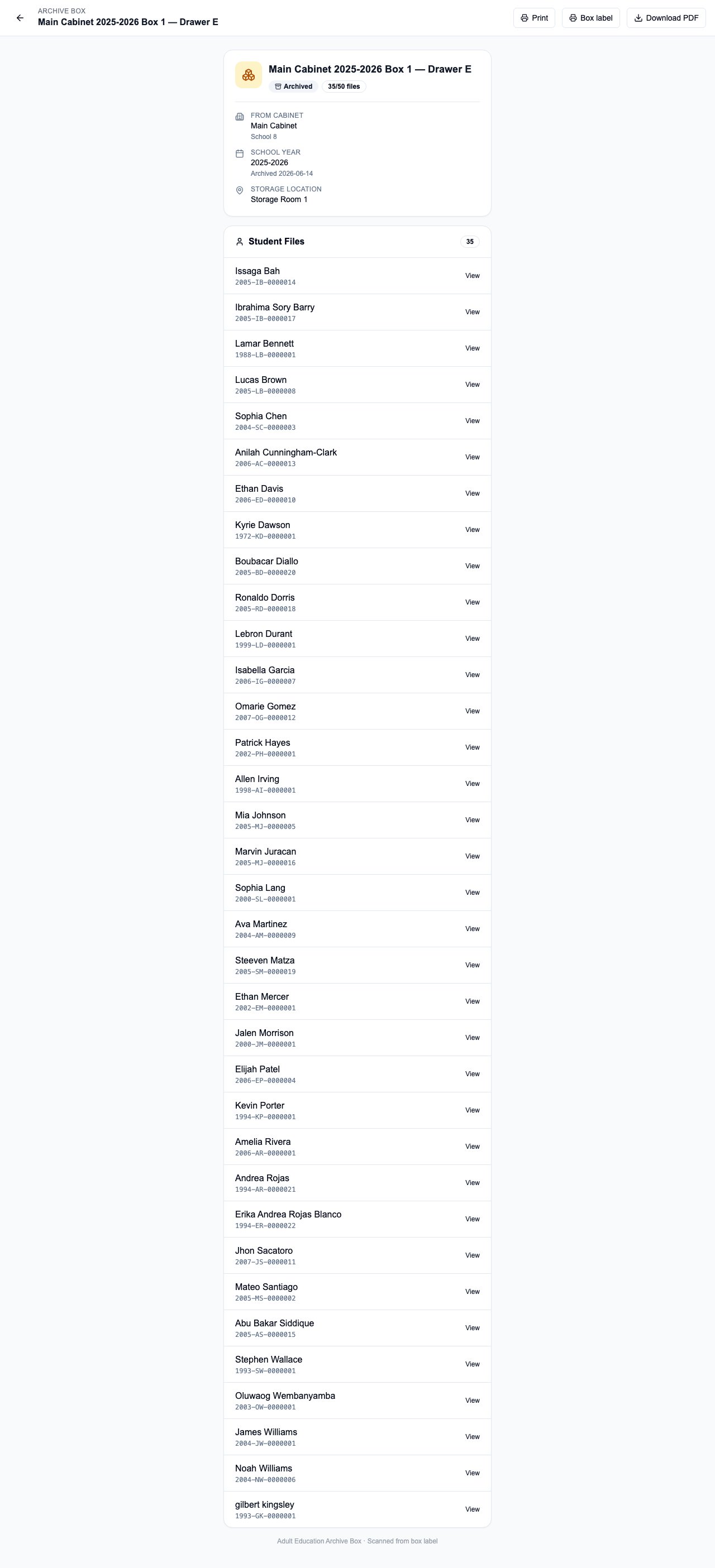
Public archive box page scanned from a box label QR