School subdomains
Use one app and one database. Each school gets an easy URL:nycadultedlabels.nyc. Legacy Vercel host (https://student-label-system.vercel.app) remains available. School isolation still comes from user school assignment and School Settings — subdomains are the portal URL layer.
You do not create a separate Vercel project per school. One deploy + one wildcard DNS record covers every school.
Checklist
- Own domain:
nycadultedlabels.nyc(Vercel Registrar) - Add apex + www + wildcard to the Vercel project
- Set tenant env vars (including cookie domain) and redeploy
- Set each school’s Subdomain slug in School Settings
- Smoke-test sign-in on a school host and on the apex
- Share portal URLs with each school
- Update Microsoft Entra redirect URI (if SSO is enabled):
https://nycadultedlabels.nyc/api/auth/callback/azure-ad
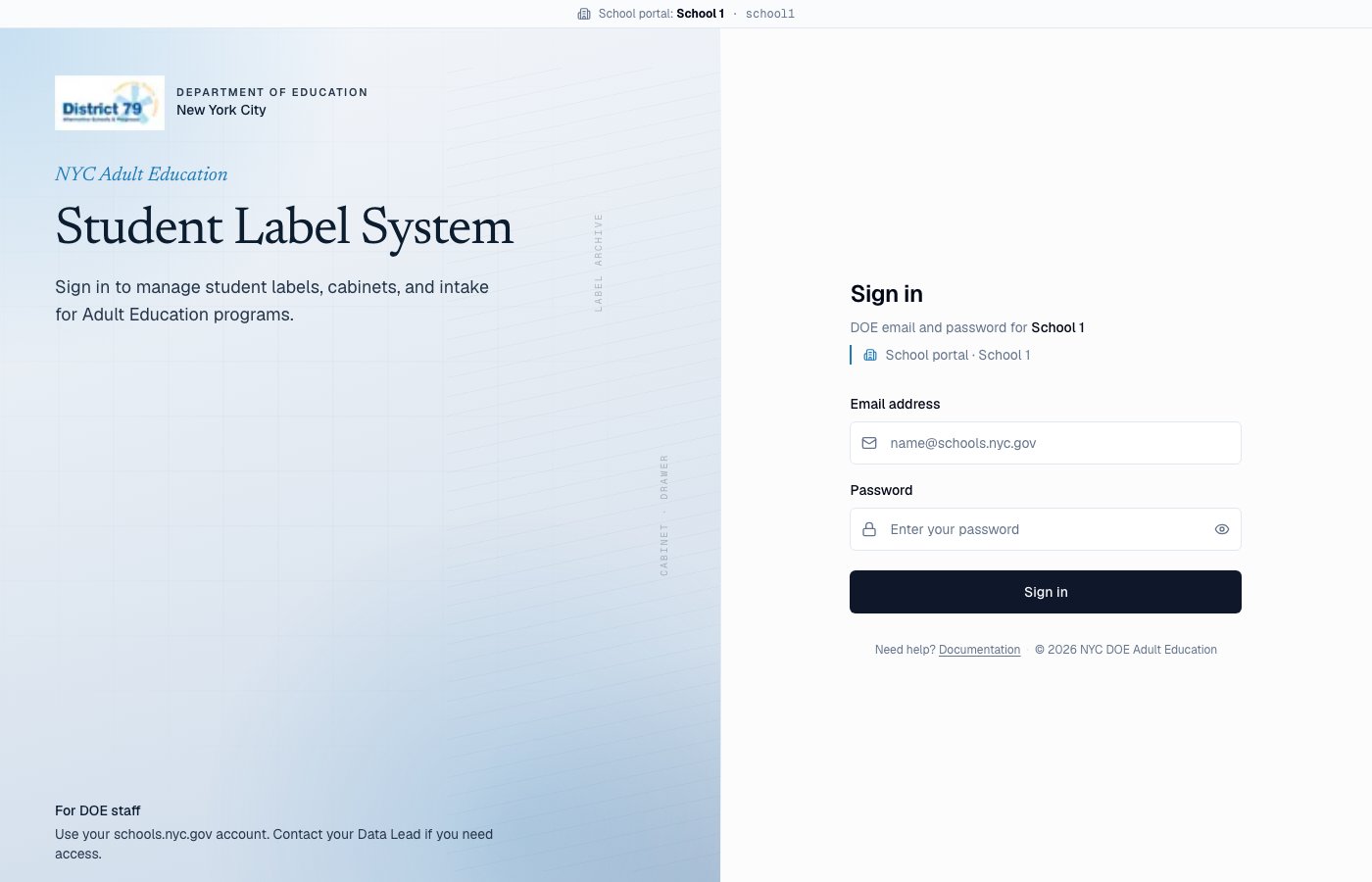
School portal sign-in — branded layout with school name for that subdomain
1. Choose the root domain
Pick the domain that will hold school portals:
The slug is only the first label (
school1). It must match the value stored on the school record.
Reserved slugs (cannot be used): www, app, api, admin, docs, auth, login, sso, staging, preview, and similar.
2. DNS (one-time)
At your DNS provider (or Vercel DNS):
Wait for DNS to propagate (often minutes; sometimes up to 24–48 hours).
3. Vercel domains (one-time)
In the Vercel project for Student Label System:- Open Settings → Domains
- Add:
nycadultedlabels.nycwww.nycadultedlabels.nyc(optional redirect to apex)*.nycadultedlabels.nyc(wildcard)
- Complete any DNS verification Vercel requests
- Confirm TLS certificates show as valid
school1.nycadultedlabels.nyc one-by-one when using a wildcard.
4. Environment variables
Set these in Vercel → Settings → Environment Variables (Production; Preview if you test custom domains there). Also mirror them in local.env when testing.
Leave these unset (or blank) to stay on single-host mode (Vercel default URL only).
5. School Settings — subdomain slug
- Sign in as Admin
- Go to Admin → Schools (
/admin/schools) - Edit each school
- Set Subdomain slug, for example:
Rules:
- Lowercase letters, numbers, hyphens only
- Unique across schools
- 2–48 characters
- Built-in schools default to
school1…school8anddistrict79when no custom slug is saved yet
6. How the app behaves
Security still uses the user’s assigned school in the session/API. The subdomain does not replace role or school checks.
Public QR pages (
/student/…, /archive/box/…) keep working on any host that reaches the app. Prefer one canonical host in printed QR URLs if you want stable links forever (NEXT_PUBLIC_APP_URL).
7. Smoke tests
After DNS + env + slugs:- Open
https://nycadultedlabels.nyc/auth/signin— district sign-in (no school badge required) - Open
https://school1.nycadultedlabels.nyc/auth/signin— should show School 1 (or the name for that slug) - Sign in as a School 1 Data Lead on
school1.…— should land in the app with a small “School portal: …” bar - Sign in as that same user on
school8.…— should see Wrong school portal - Sign in as Admin on either host — should work; Admin can open all schools
- Confirm MFA still works on the school host
8. What to tell each school
Example message:9. Local development
Subdomains are usually off locally (localhost does not match TENANT_ROOT_DOMAIN).
Optional local test:
-
Add to
/etc/hosts(macOS/Linux): -
Set:
-
Visit
http://school1.localhost:3000(browser support for*.localhostvaries; Chrome is usually fine)
http://localhost:3000 URL.
10. Troubleshooting
Related
- Data Lead and Admin tools — School Settings overview
- User roles — MFA and permissions
- Repo env template:
.env.example