

School year rollover
Storage → School Year (/admin/school-year) tracks:
- Current fiscal year setting (School Settings)
- Cabinets ready to archive vs. still open
- Pending box assignments
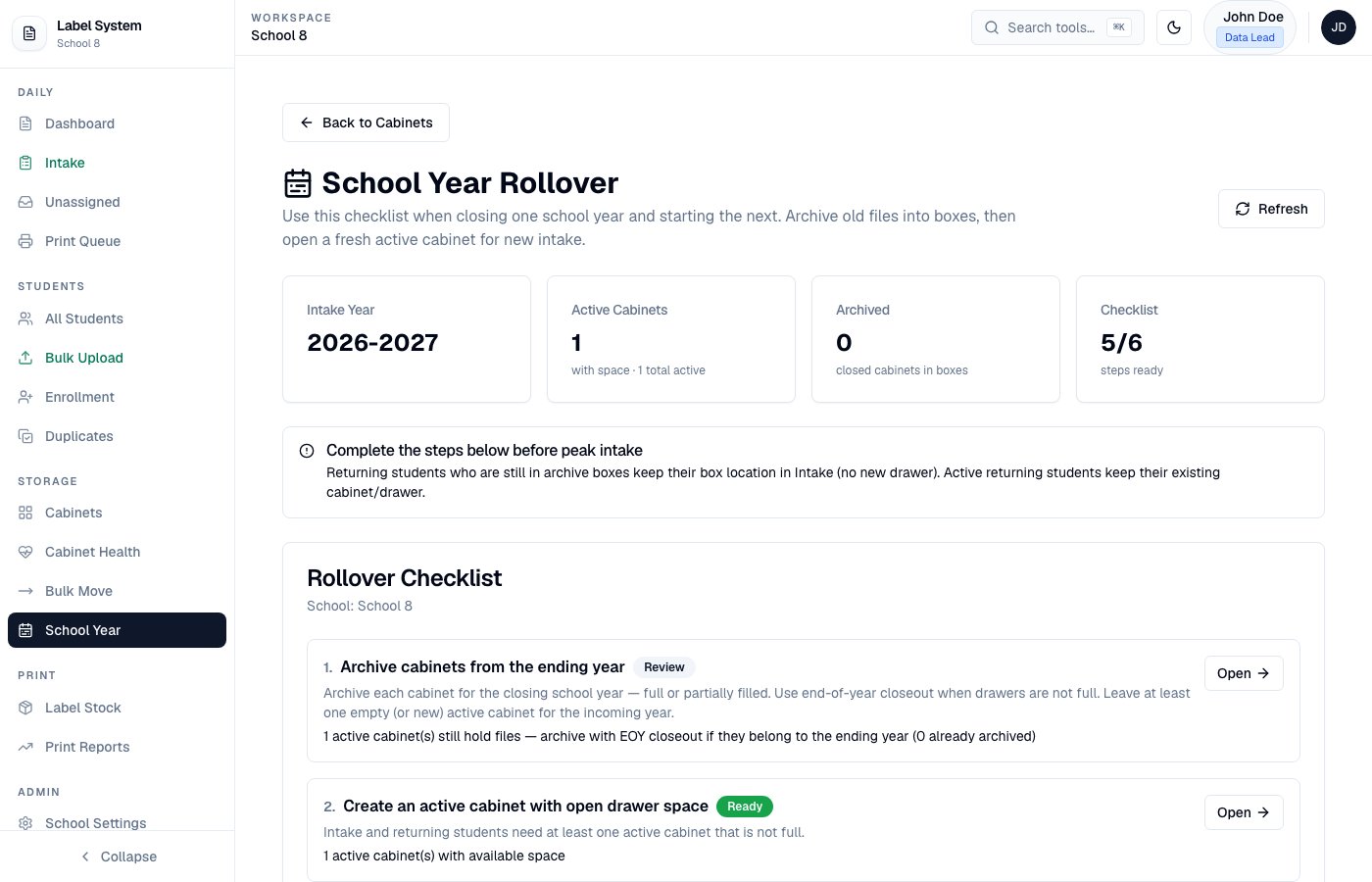
School Year Rollover checklist — ready for the new school year
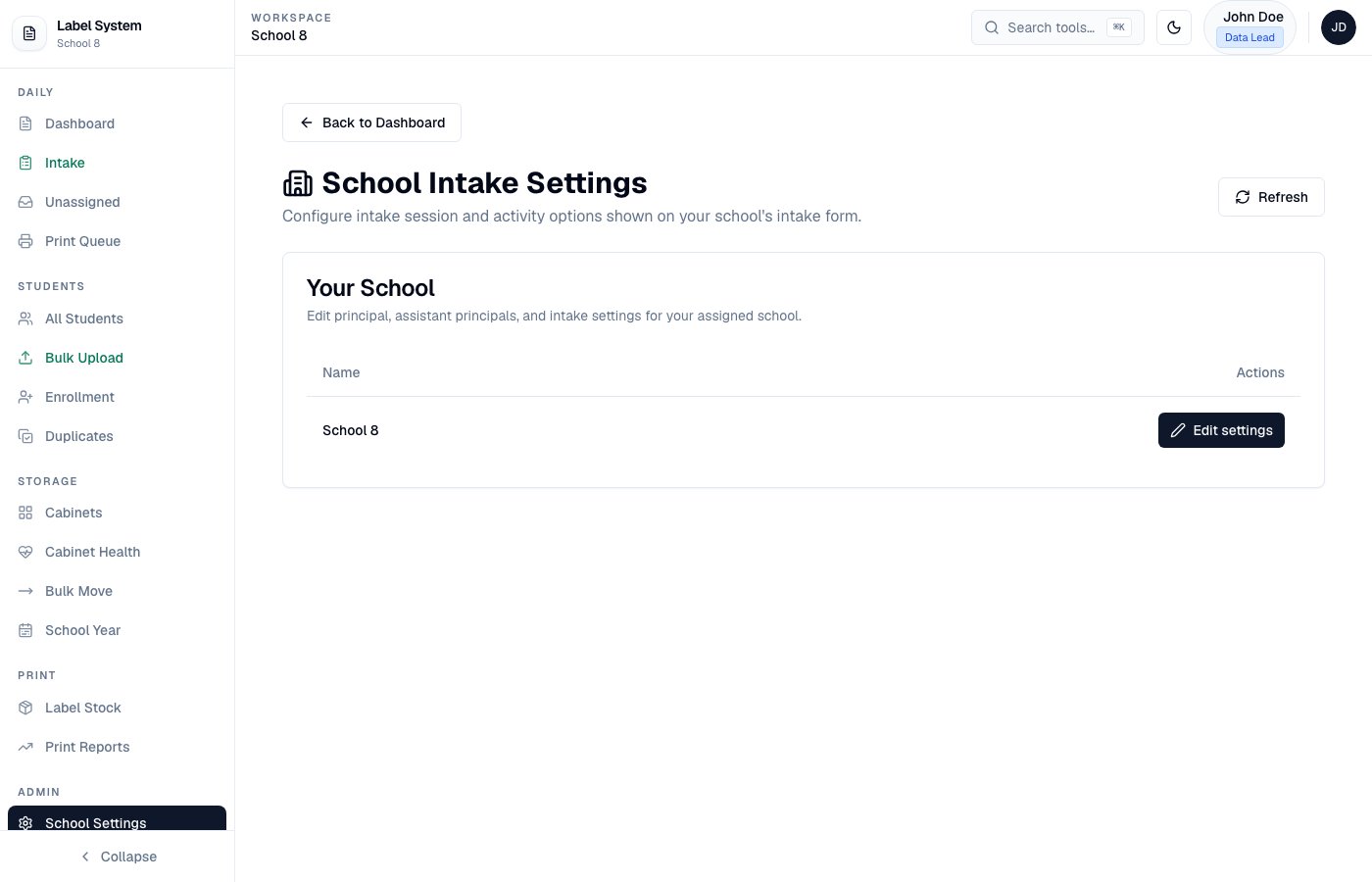
School Settings — fiscal year, intake sessions, and activities
Archive a cabinet
1
Review readiness
Check Cabinet Health and Unassigned Queue before archiving.
2
Archive from Cabinets
Choose box size (50 / 100 / 200 files), storage location, and school year.
3
Full closeout vs partial archive
- Full end-of-year — turn on End-of-year closeout if drawers are not completely full; the cabinet becomes Archived.
- Partial archive — archive only selected statuses (e.g. Graduated / Transferred) and optionally specific drawers. The cabinet stays Active for remaining students.
4
Preview packing (required)
Click Preview packing to see who goes in which box. Override any student’s box from the dropdown before you commit. Reset to auto packing if needed.
5
Commit and print labels
Confirm the archive. Each box gets a unique ID. From the box label dialog: Print Label or Download PDF. Attach to the physical box.
6
Find it later on the Archived tab
A full closeout moves the cabinet to Storage → Cabinets → Archived. Active cabinets stay on the Active tab (the default). Capacity totals ignore archived cabinets.
7
Store and retain
Keep physical files for the 7-year retention period before disposal.
Restore a cabinet
If a packed cabinet needs to accept new files again, open the Archived tab and click Restore. Confirm the prompt. The cabinet returns to Active (intake, moves, and the floor map can use it again). Box records and packing history are not deleted.Public box pages
Box QR codes link to/archive/box/{boxId} — no login required. Staff and auditors can scan a box in storage to see location metadata and the full student list.
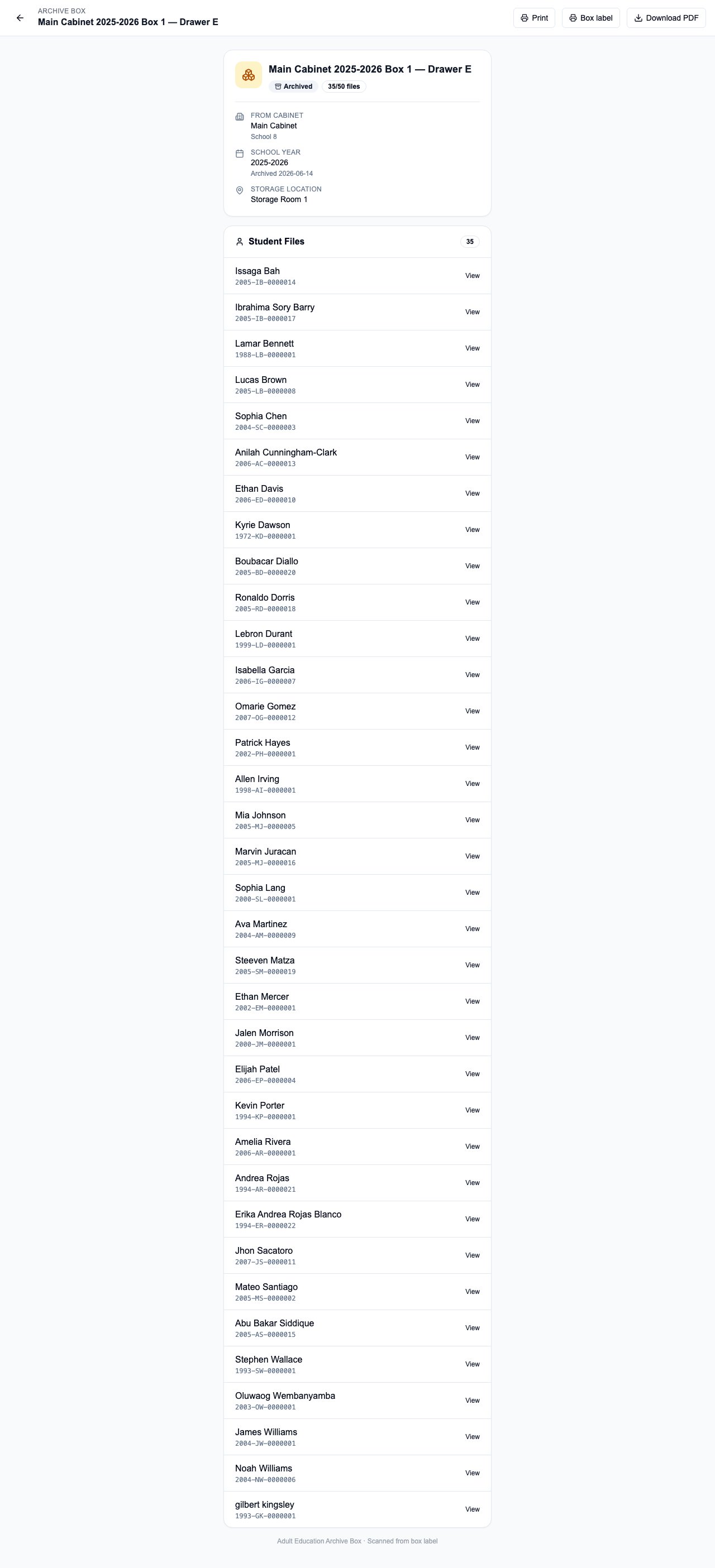
Public archive box page — location metadata and student file list
Returning archived students at Intake
When an archived student returns for a visit, Intake shows the existing archive box (label, location, QR) instead of assigning a new active drawer. Staff add paperwork to the same physical file. See Intake workflow → Returning archived students.PDF layout
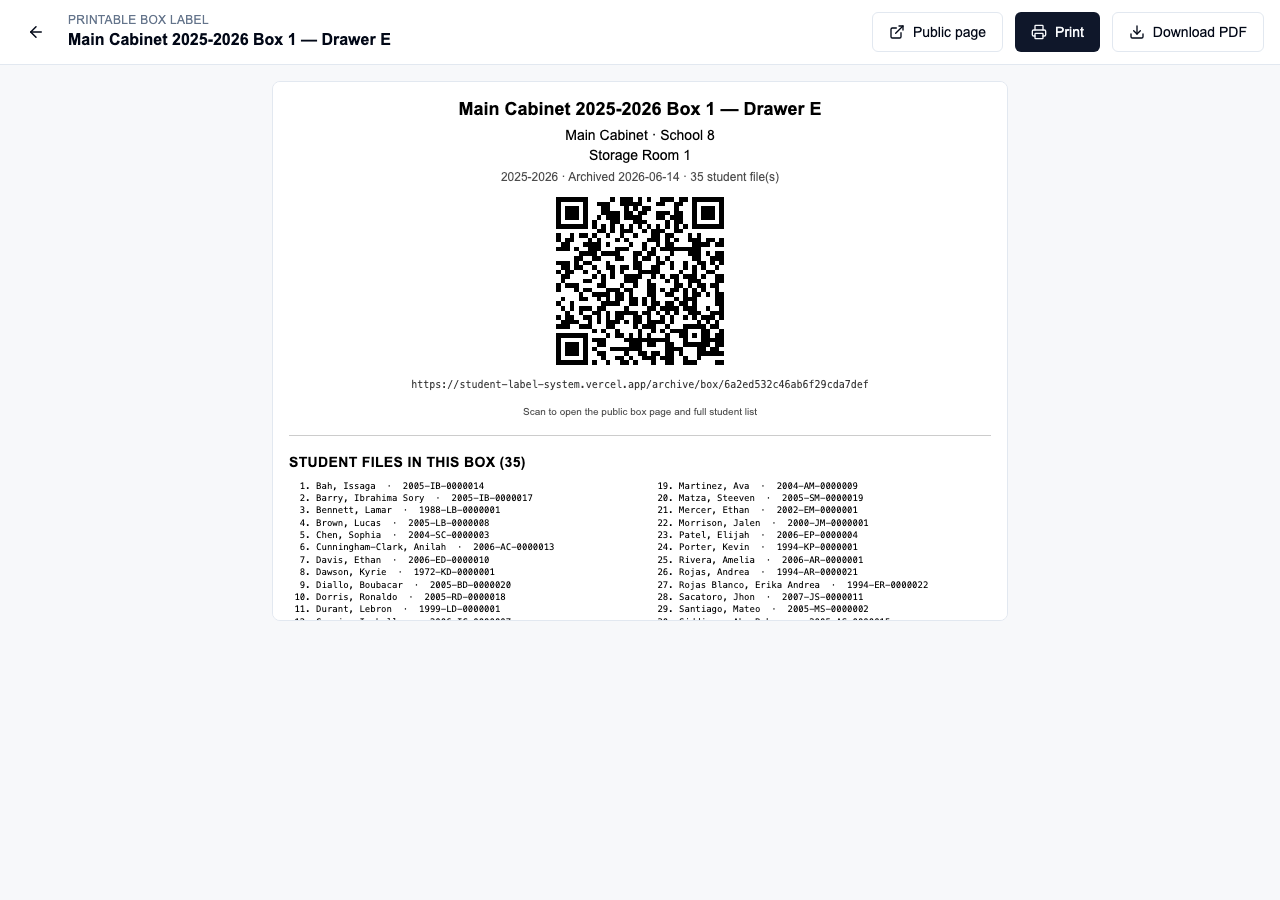
Printable box label with QR and student list