

/admin/students/bulk-upload)
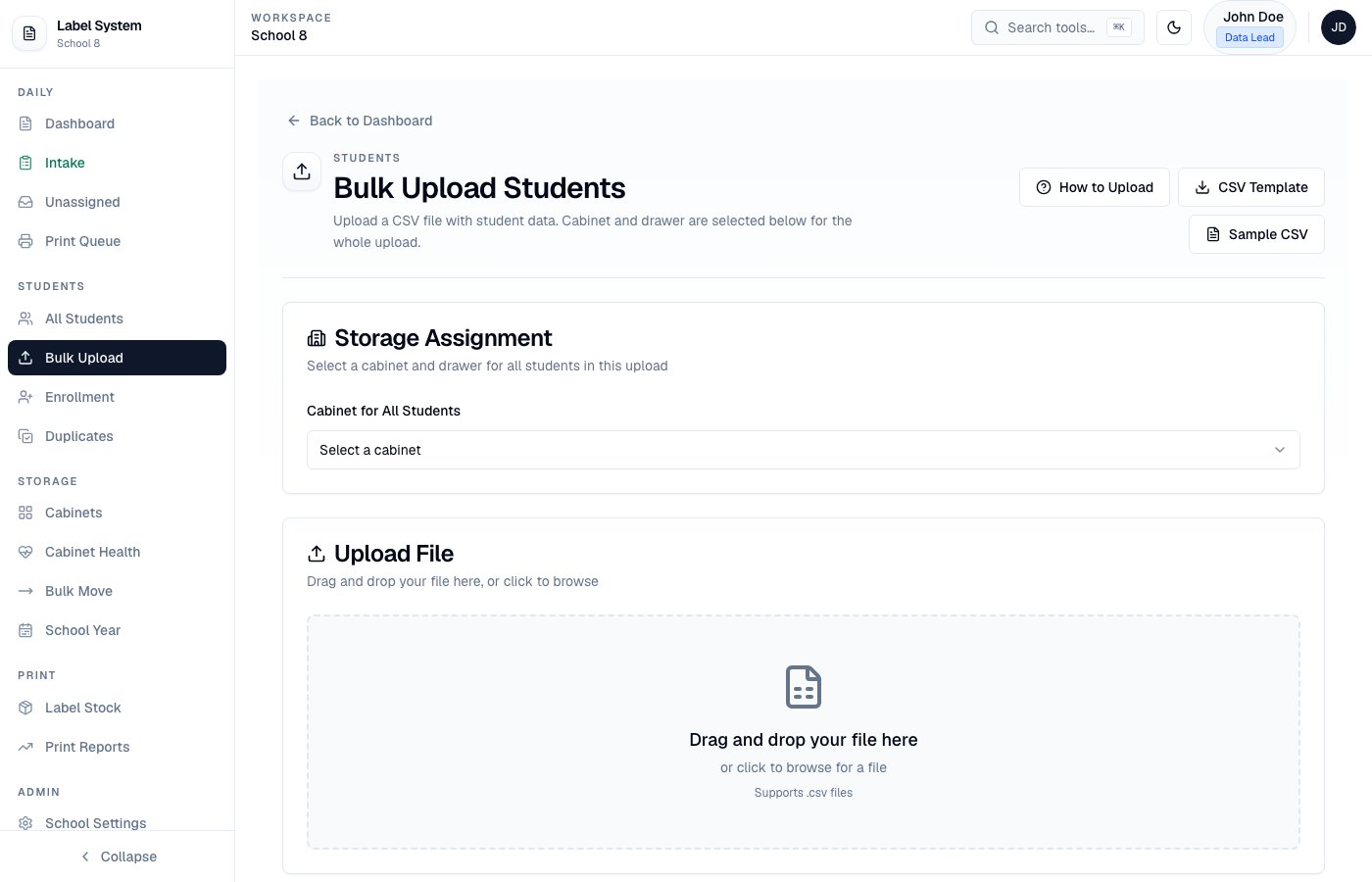
Bulk Upload — choose cabinet/drawer, then drop a CSV
Required columns
Cabinet and drawer are selected on the upload screen for the entire file. After a successful upload with no leftover blocked rows, you return to the Dashboard.studentId in the CSV is optional — the server generates Label ID and demographic Student ID.
Dates may be YYYY-MM-DD or M/D/YY (normalized on import). Stored DOBs are calendar dates (no timezone day-shift).
Optional address columns
Preview and validation
After you load a file, the preview table shows every row with issue badges and filters (All, Ready, Needs Fixing, Duplicates, Dates, Warnings).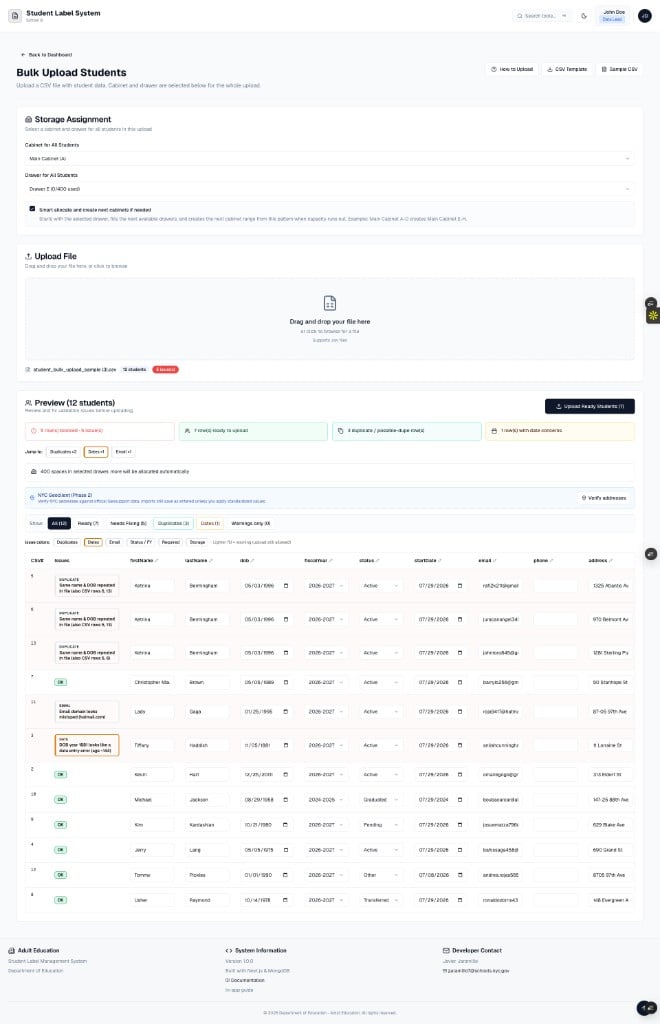
Preview — blocking issues, duplicates, date concerns, and per-row Remove
What gets checked
Use the Remove control in the first column (sticky while you scroll) to drop duplicate or unwanted rows before upload. Duplicate rows show a clearer Remove button.
Click any cell to fix values — validation updates immediately.
Features
- Download CSV template or sample file from the upload page
- Inline editing of preview rows
- Address warnings (NYC ZIP/borough) — amber, not blocking
- Verify addresses — NYC Geoclient batch verify; Apply standardized updates street while keeping apt
- Auto-generates Label ID and Student ID; assigns drawer Section 01–08 automatically
- Smart allocate across drawers / next cabinets when capacity runs out
CSV template
/student_bulk_upload_template.csv and /student_bulk_upload_sample.csv
After import
Review students on the Dashboard. Location shows cabinet, drawer, and section (Data Lead view). School-wide address review: Students → All Students (/admin/students/all).
See Address and NYC verification and Cabinets and drawers.