

Cabinets page
Storage → Cabinets (/admin/cabinets) manages where student files live.
- Create cabinets with multiple drawers
- Drawer capacity: presets 100, 200, 400, or Custom (1–5000 files)
- Cabinet total capacity is the sum of its drawer capacities
- Switch Active / Archived tabs; filter by school, capacity status, usage, and name
- Smart Fill creates standard cabinet structures quickly (default 400 per drawer)
- Sync Counts recalculates drawer counts and refreshes automatic sections
- Renaming a drawer keeps its stable ID so students are not orphaned
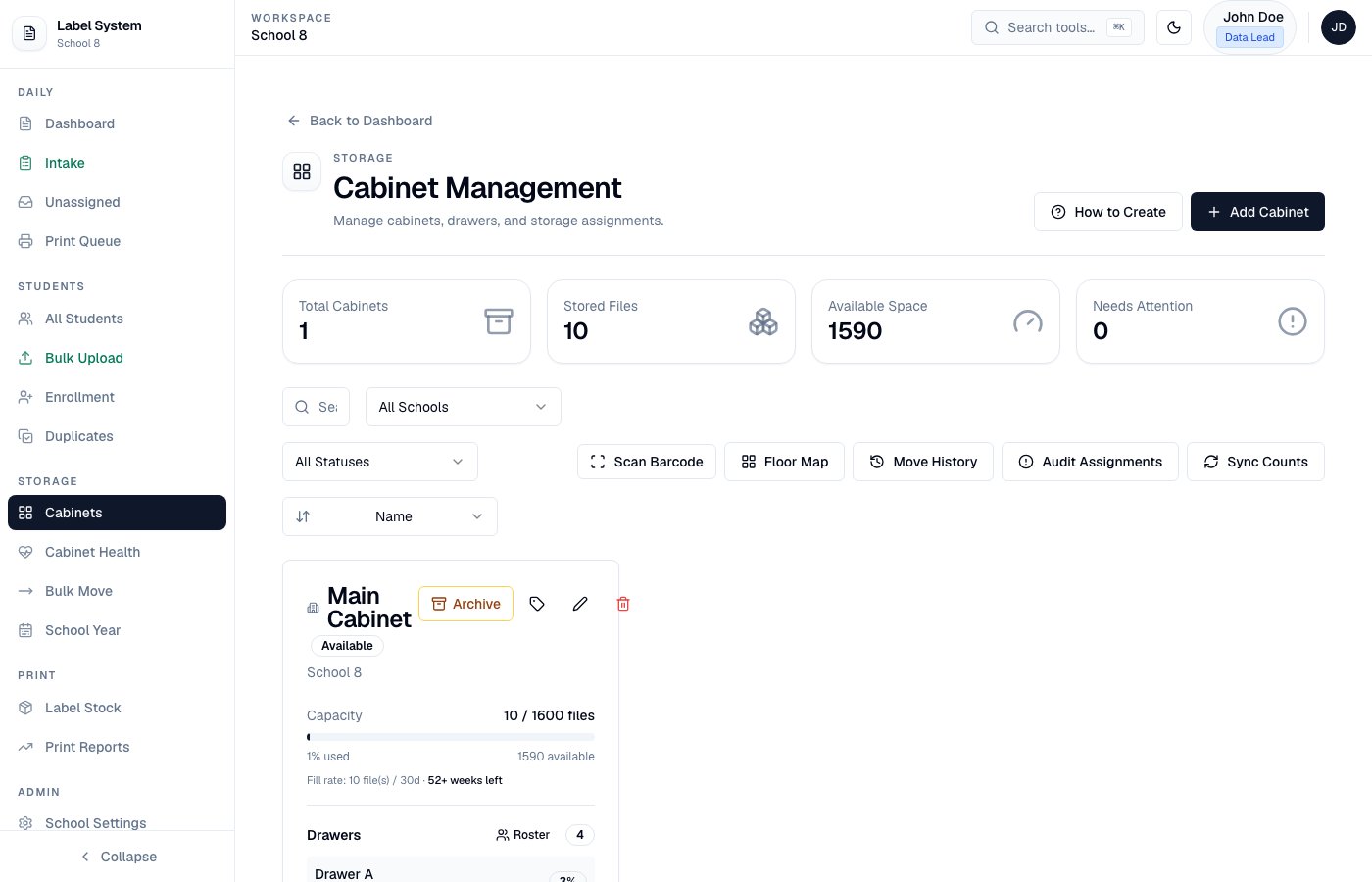
Cabinet Management — capacity, drawers, sections, and tools
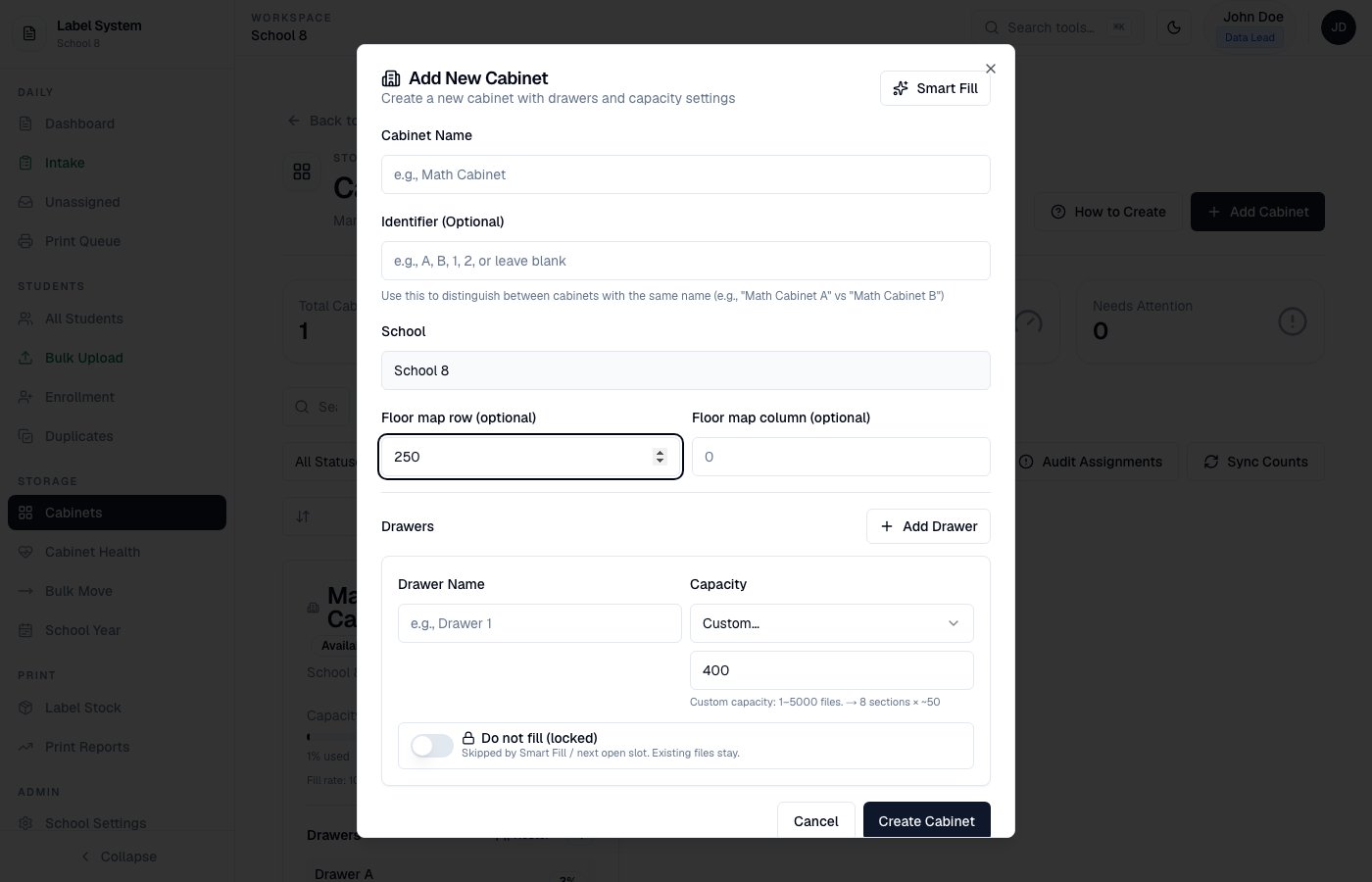
Add Cabinet — Custom drawer capacity (1–5000 files)
Active and archived cabinets
The page defaults to Active. Use Archived to review packed cabinets without mixing them into daily capacity work.
The summary strip (stored files, available, needs attention) counts active cabinets only.
Archive vs Restore
- Archive on an active card opens the packing wizard (full closeout or partial). A full archive moves the cabinet to the Archived tab and shows a confirmation banner.
- Restore on an archived card returns the cabinet to Active so it can receive new files. Archive-box history stays on file.
- After Restore, a confirmation banner appears and the page switches back to Active.
Partial archive (selected statuses or drawers) leaves the cabinet Active. Only a full end-of-year closeout sends it to the Archived tab. See Archive and school year.
Automatic sections
Each drawer is split into 8 sections (about 1/8 of capacity) for physical filing:
Sections are assigned automatically when a student is stored (intake, create, bulk upload, or move). They are not shown on the Intake form.
Data Leads see them:
- On cabinet cards (section occupancy grid under each drawer)
- On the Dashboard location column: Cab / Draw / Sec
- In the drawer Roster (click a drawer name or section chip)
Printable storage labels
On an active cabinet, use the tag icon to print cabinet / drawer / section labels for physical furniture (same idea as archive-box QR labels). Attach them to the cabinet face, drawer fronts, and section dividers. From Cabinet Health, use Move from here on a full, near-full, empty, or over-capacity row to open Bulk Move with that cabinet/drawer pre-filtered. Bulk Move also supports source drawer, status filter, and Show more for large lists. To bring an archived file back into an active drawer (uncommon — most returners stay in the archive box), open the student record and choose Re-file to next active drawer (Admin / Data Lead). That assigns the next open slot, clears archive box fields, and sets status to Active.Drawer roster (audit)
Open Roster on a cabinet or click a drawer / section chip to:- View students (A–Z)
- Print or download CSV for a physical audit
- Reassign a student to another cabinet/drawer
- Use By section (drag) to move a file between Section 01–08 inside the same drawer (logged in Move History)
Locked drawers (“do not fill”)
In Add/Edit Cabinet, mark a drawer Do not fill (locked). Locked drawers:- Are skipped by Smart Fill / next open slot
- Cannot be chosen as a move target
- Keep existing files in place
Capacity planning
Each active cabinet card shows recent fill rate and ~weeks left at that rate. If the cabinet would fill before the next typical peak (Sep 15 or Jan 15), a warning appears at the top of the page and on the card.Floor / room map
Floor Map lets you drag cabinets onto a grid (row/column) that matches the room layout. Positions save immediately. Click a placed cabinet to jump to its card. Double-click a cell to clear its position. Optional row/column fields are also on the Edit Cabinet form.Scan to locate
Use Scan Barcode on the Cabinets page (or enter a Label ID). The matching cabinet / drawer / section is highlighted so staff can find the physical file quickly. If the file is in an archived cabinet, the page switches to the Archived tab first.Move history
Move History lists who moved which students, from → to, and when (also mirrored in Audit Logs). Export CSV for records. Moves are blocked into archived cabinets. Bulk moves always set drawerSection. When the database supports it, bulk moves run in a transaction.Fix from Health / Unassigned
Cabinet Health and Unassigned support one-click assign to next open slot or pick a cabinet/drawer — not diagnose-only.Cabinet Health
Storage → Cabinet Health shows full, near-full, empty, and over-capacity drawers. Archived students with a valid archive box are excluded from “missing cabinet” warnings.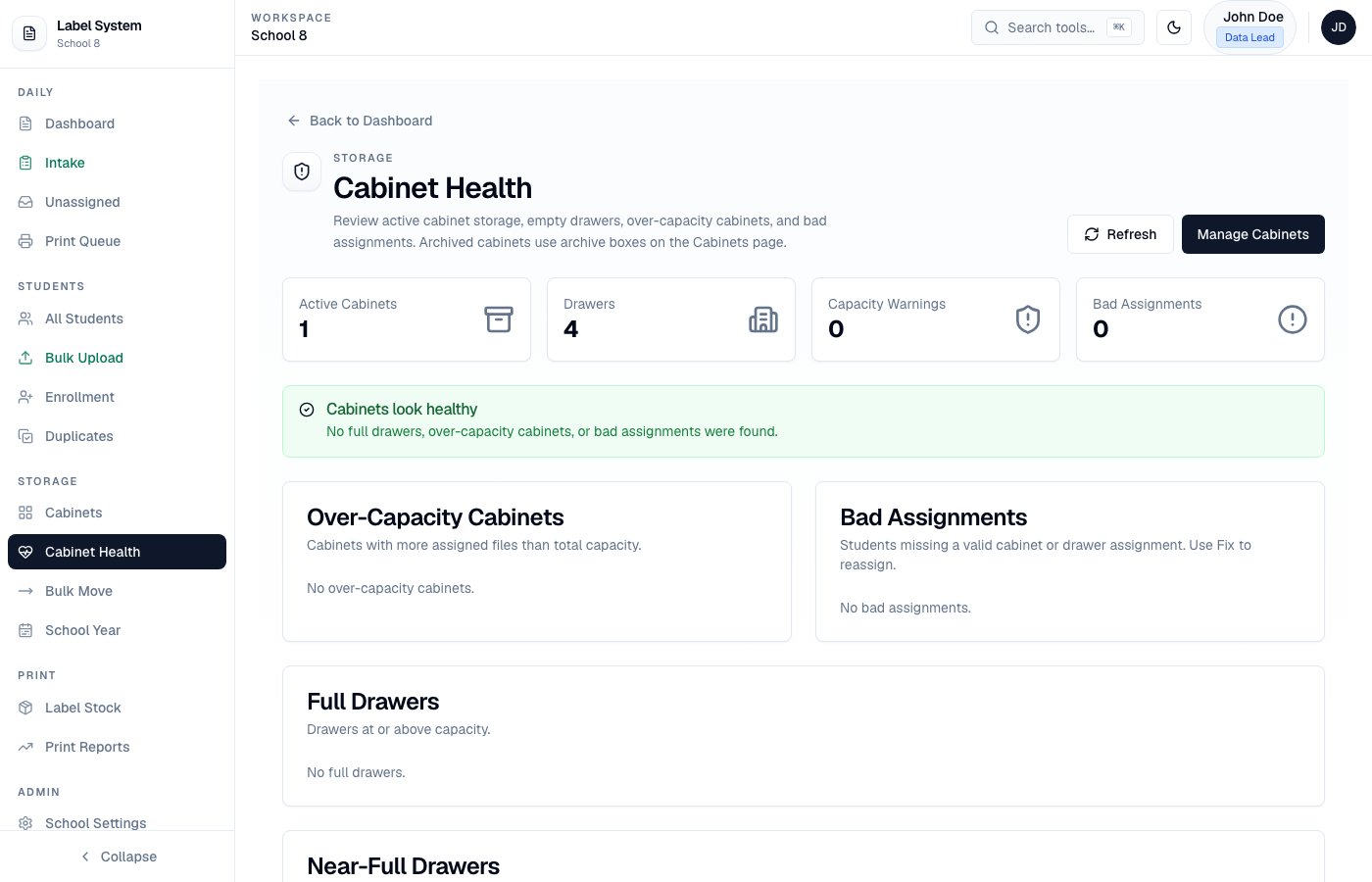
Cabinet Health — capacity overview