> ## Documentation Index
> Fetch the complete documentation index at: https://docs.nycadultedlabels.nyc/llms.txt
> Use this file to discover all available pages before exploring further.
# Intake workflow
> Register new and returning students, verify addresses, enforce session hours, and log visits.
## Overview
The Intake Form (`/intake`) is the front-desk registration screen. It supports live duplicate detection (name **and** address), NYC address verification for new students, session-hour validation, cabinet or archive-box location, and a clear success summary after save.
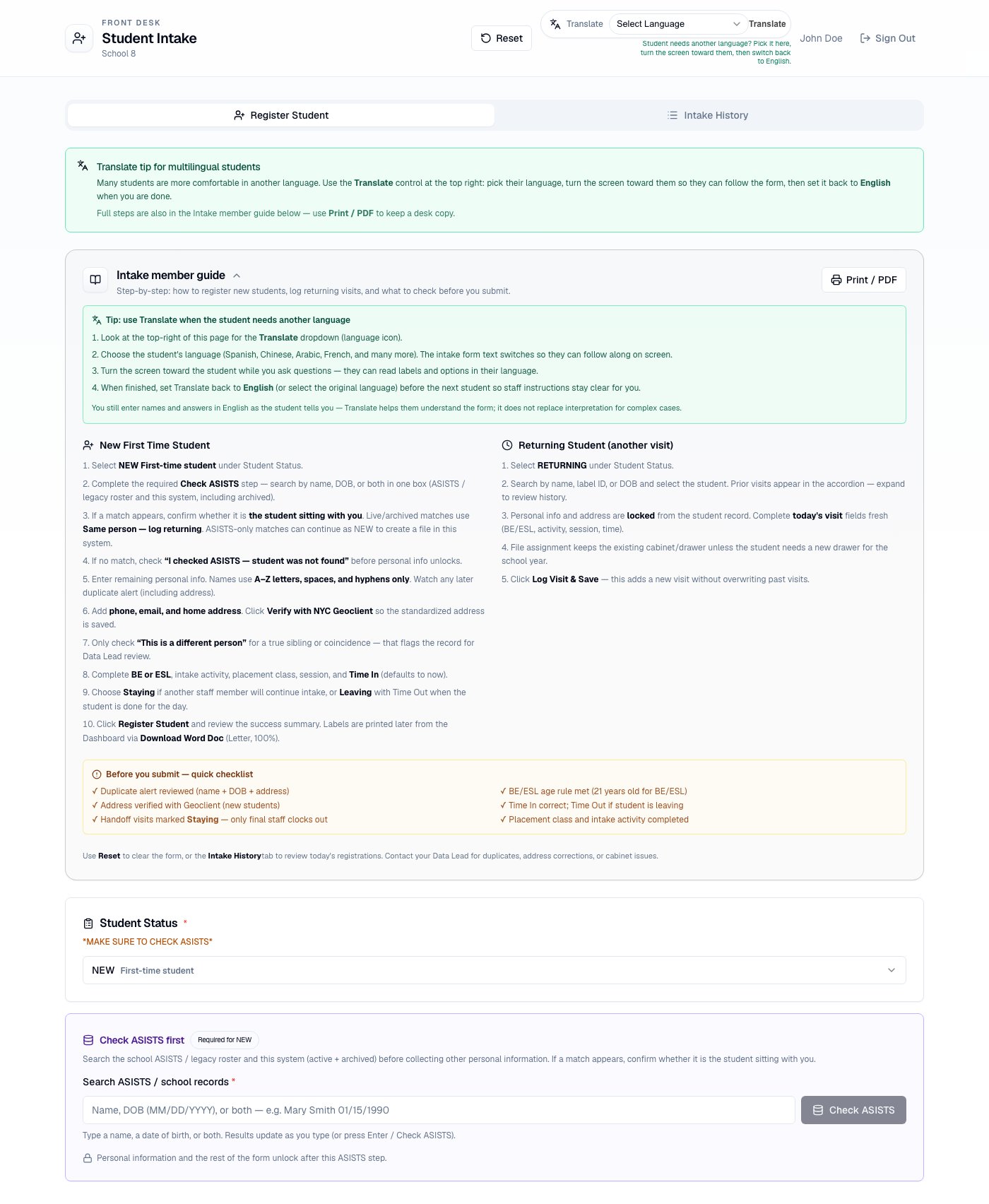 Open Intake at [nycadultedlabels.nyc/intake](https://nycadultedlabels.nyc/intake). Intake Members land here after sign-in.
## Intake member guide + Print / PDF
At the top of Register Student, expand **Intake member guide** for NEW and RETURNING steps plus a pre-submit checklist. Use **Print / PDF** to save a desk copy (browser print → Save as PDF).
## Translate for multilingual students
Many students are more comfortable in another language. Use the **Translate** control at the top right of Intake:
1. Open the language dropdown (language icon).
2. Choose the student's language (Spanish, Chinese, Arabic, French, and many more).
3. Turn the screen toward the student so they can follow labels and options.
4. Set Translate back to **English** before the next student.
Staff still enter names and answers in English as the student tells them — Translate helps the student understand the form; it does not replace interpretation for complex cases.
Open Intake at [nycadultedlabels.nyc/intake](https://nycadultedlabels.nyc/intake). Intake Members land here after sign-in.
## Intake member guide + Print / PDF
At the top of Register Student, expand **Intake member guide** for NEW and RETURNING steps plus a pre-submit checklist. Use **Print / PDF** to save a desk copy (browser print → Save as PDF).
## Translate for multilingual students
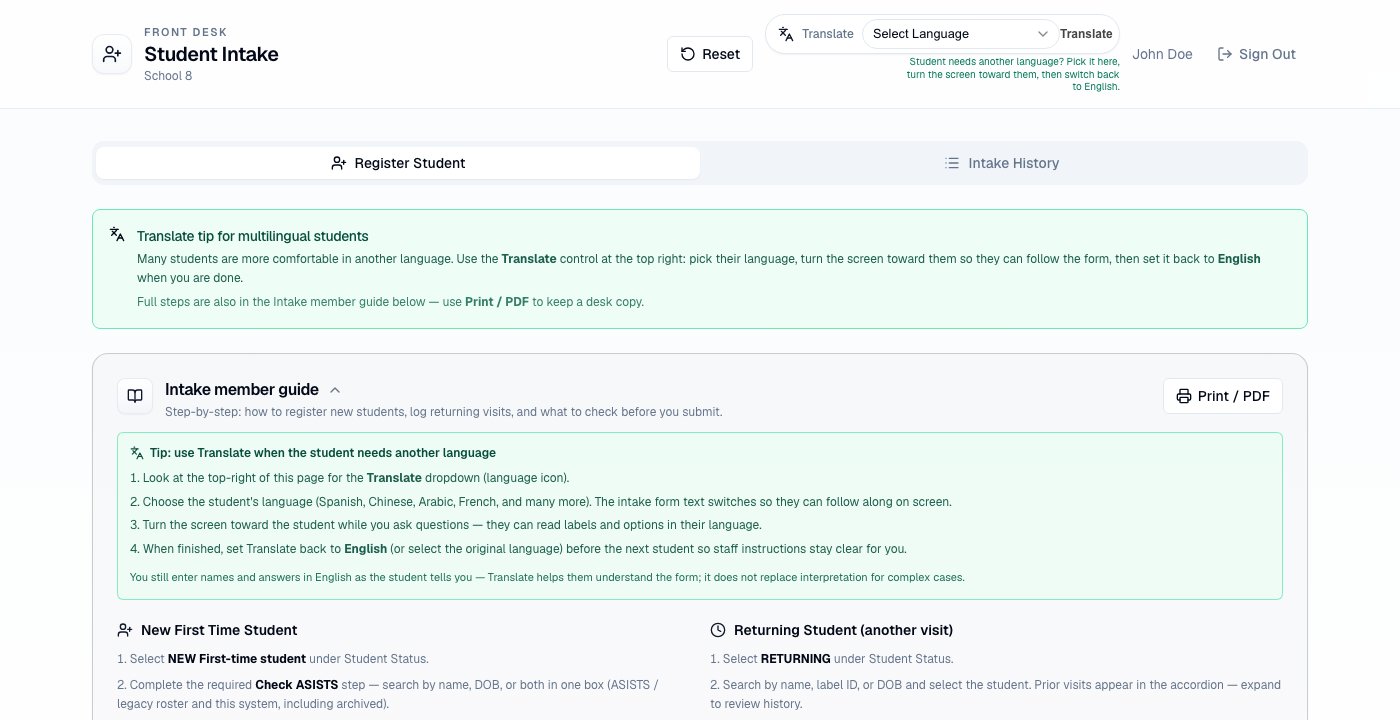
Many students are more comfortable in another language. Use the **Translate** control at the top right of Intake:
1. Open the language dropdown (language icon).
2. Choose the student's language (Spanish, Chinese, Arabic, French, and many more).
3. Turn the screen toward the student so they can follow labels and options.
4. Set Translate back to **English** before the next student.
Staff still enter names and answers in English as the student tells them — Translate helps the student understand the form; it does not replace interpretation for complex cases.
 ## Student types
| Type | When to use |
| ------------------- | ---------------------------------------------------------------------------------- |
| **NEW** | First-time registration at your program |
| **RETURNING** | Student already in the system — search by name/DOB, then record today's visit only |
| **CTE Orientation** | CTE orientation intake |
| **Other** | Special cases per school policy (age rule does not block BE/ESL the same way) |
**Continuing Intake** was removed. Returning students use **RETURNING** on the same screen — no separate modal.
## NEW student — step by step
Choose **NEW** under Student Status.
Search ASISTS / legacy roster and this system (including archived) by name, DOB, or both. If a live/archived match is the person with you, use **Same person — log returning**. If ASISTS-only, you may continue as NEW. If no match, check **I checked ASISTS — student was not found** so personal info unlocks.
* First and last name (required) — A–Z, spaces, and hyphens
* **Date of birth** — a human-readable date appears under the picker
* **BE/ESL age rule** — students must be at least **21 years old** on their birthday for BE or ESL
* Phone and email
* **Paste full address** → **Parse**, or enter street, **Apt/Unit**, city, state, ZIP separately
* **Verify with NYC Geoclient** before submit (when configured)
* **View on Google Maps** after verify
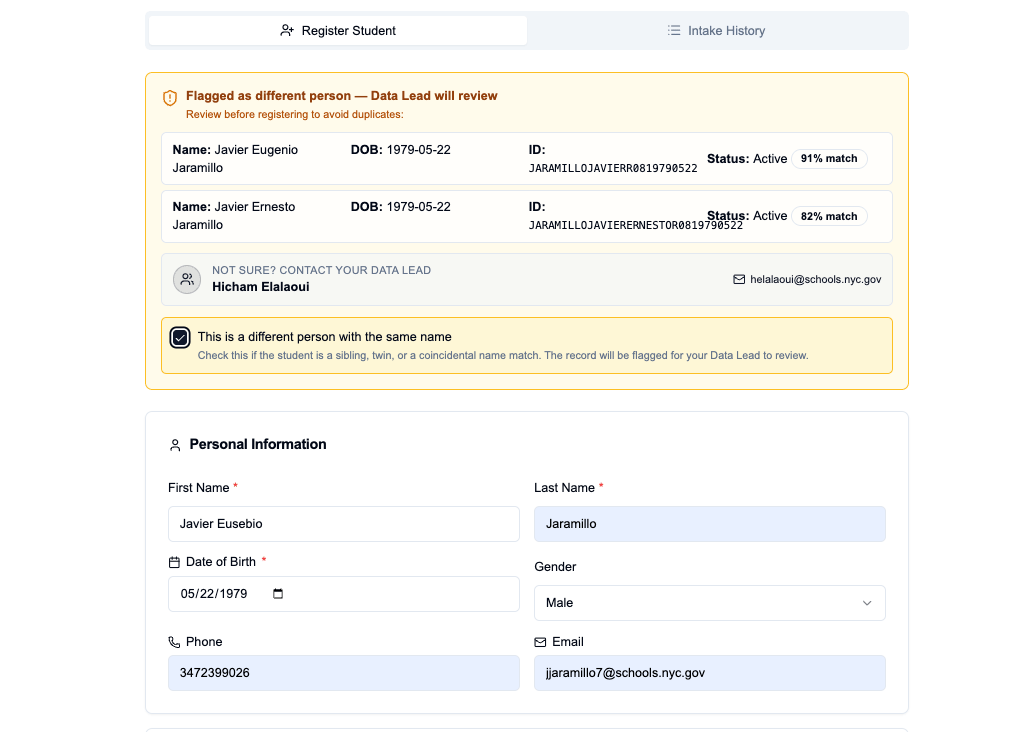
The system checks same DOB + similar name **and** compares home address. See [Duplicates and siblings](/workflows/duplicates-and-siblings). Only use **This is a different person** for a true sibling or coincidence.
Choose **BE** or **ESL**, intake activities, placement class, **intake session**, Time In, and Leaving/Staying (Time Out required if Leaving).
Click **Register Student**. The success screen shows a summary of what was saved — not a label print preview.
## Session hours (required)
Each school configures intake sessions with start and end times (for example **MORNING 9:00 AM – 1:00 PM** or **BUSHWICK EVENING 4:00 PM – 9:00 PM**).
* **Time In** and **Time Out** must fall inside the selected session window
* Invalid times show a red error under the field and **block submit**
* The allowed window appears under Time In once a session is selected
Do not pick a morning session and enter an evening Time In. Fix the session or the time before saving — enrollment will also flag visits that fall outside session hours.
## RETURNING student — step by step
## Student types
| Type | When to use |
| ------------------- | ---------------------------------------------------------------------------------- |
| **NEW** | First-time registration at your program |
| **RETURNING** | Student already in the system — search by name/DOB, then record today's visit only |
| **CTE Orientation** | CTE orientation intake |
| **Other** | Special cases per school policy (age rule does not block BE/ESL the same way) |
**Continuing Intake** was removed. Returning students use **RETURNING** on the same screen — no separate modal.
## NEW student — step by step
Choose **NEW** under Student Status.
Search ASISTS / legacy roster and this system (including archived) by name, DOB, or both. If a live/archived match is the person with you, use **Same person — log returning**. If ASISTS-only, you may continue as NEW. If no match, check **I checked ASISTS — student was not found** so personal info unlocks.
* First and last name (required) — A–Z, spaces, and hyphens
* **Date of birth** — a human-readable date appears under the picker
* **BE/ESL age rule** — students must be at least **21 years old** on their birthday for BE or ESL
* Phone and email
* **Paste full address** → **Parse**, or enter street, **Apt/Unit**, city, state, ZIP separately
* **Verify with NYC Geoclient** before submit (when configured)
* **View on Google Maps** after verify
The system checks same DOB + similar name **and** compares home address. See [Duplicates and siblings](/workflows/duplicates-and-siblings). Only use **This is a different person** for a true sibling or coincidence.
Choose **BE** or **ESL**, intake activities, placement class, **intake session**, Time In, and Leaving/Staying (Time Out required if Leaving).
Click **Register Student**. The success screen shows a summary of what was saved — not a label print preview.
## Session hours (required)
Each school configures intake sessions with start and end times (for example **MORNING 9:00 AM – 1:00 PM** or **BUSHWICK EVENING 4:00 PM – 9:00 PM**).
* **Time In** and **Time Out** must fall inside the selected session window
* Invalid times show a red error under the field and **block submit**
* The allowed window appears under Time In once a session is selected
Do not pick a morning session and enter an evening Time In. Fix the session or the time before saving — enrollment will also flag visits that fall outside session hours.
## RETURNING student — step by step
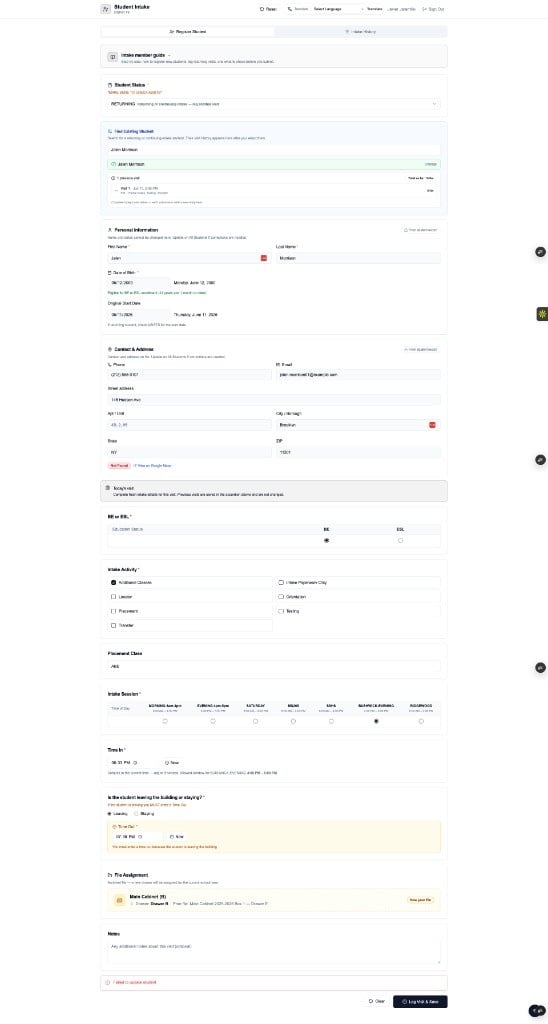 Search by name and date of birth. Select the matching record from results.
An accordion shows prior intake visits (date, session, activities, times). Prior visit data is **not** overwritten.
Name, DOB, phone, email, and address fields are **read-only**. Only **today's visit** fields are editable.
Enter fresh BE/ESL, session, activities, and time in/out. Submit appends a new visit snapshot. Click **Log Visit & Save**.
## Returning archived students
If the student file is **already archived**, Intake does **not** assign a new drawer for the school year.
| Situation | What you see |
| ------------------------------ | ----------------------------------------------------------------------- |
| Archive box on file | Box label, storage location, **QR code**, and **View archive box** link |
| Archived but no box recorded | Warning to contact your Data Lead — visit can still be logged |
| Active student with no cabinet | Next available drawer is assigned (true unassigned case only) |
Staff can scan the archive-box QR to find the physical file when paperwork needs to be added.
## Under 21 — Pathways to Graduation (P2G)
Students younger than **21** are not eligible for BE or ESL. When age applies, Intake blocks BE/ESL enrollment and can show a **copyable referral message** for [Pathways to Graduation](https://p2g.nyc/contact/).
Use **Copy message for email** on the success screen (or when the under-21 notice appears) to paste into Teams or email.
## Success screen
After save you see:
* Student name, ID, and status badges
* A summary of the visit or registration (session, times, activities, contact)
* File location (active drawer **or** archive box)
* Address with optional Google Maps link
* Under-21 P2G referral card when applicable
Buttons: **Log Another Visit** or **Register Another Student** — label printing is done later from the Dashboard / Print Queue via **Download Word Doc** (Letter, 100%), not one-by-one at intake.
## Fix intake time issues
The yellow banner at the top of Intake lists students with time problems (outside session hours or handoff Time Out issues).
Search by name and date of birth. Select the matching record from results.
An accordion shows prior intake visits (date, session, activities, times). Prior visit data is **not** overwritten.
Name, DOB, phone, email, and address fields are **read-only**. Only **today's visit** fields are editable.
Enter fresh BE/ESL, session, activities, and time in/out. Submit appends a new visit snapshot. Click **Log Visit & Save**.
## Returning archived students
If the student file is **already archived**, Intake does **not** assign a new drawer for the school year.
| Situation | What you see |
| ------------------------------ | ----------------------------------------------------------------------- |
| Archive box on file | Box label, storage location, **QR code**, and **View archive box** link |
| Archived but no box recorded | Warning to contact your Data Lead — visit can still be logged |
| Active student with no cabinet | Next available drawer is assigned (true unassigned case only) |
Staff can scan the archive-box QR to find the physical file when paperwork needs to be added.
## Under 21 — Pathways to Graduation (P2G)
Students younger than **21** are not eligible for BE or ESL. When age applies, Intake blocks BE/ESL enrollment and can show a **copyable referral message** for [Pathways to Graduation](https://p2g.nyc/contact/).
Use **Copy message for email** on the success screen (or when the under-21 notice appears) to paste into Teams or email.
## Success screen
After save you see:
* Student name, ID, and status badges
* A summary of the visit or registration (session, times, activities, contact)
* File location (active drawer **or** archive box)
* Address with optional Google Maps link
* Under-21 P2G referral card when applicable
Buttons: **Log Another Visit** or **Register Another Student** — label printing is done later from the Dashboard / Print Queue via **Download Word Doc** (Letter, 100%), not one-by-one at intake.
## Fix intake time issues
The yellow banner at the top of Intake lists students with time problems (outside session hours or handoff Time Out issues).
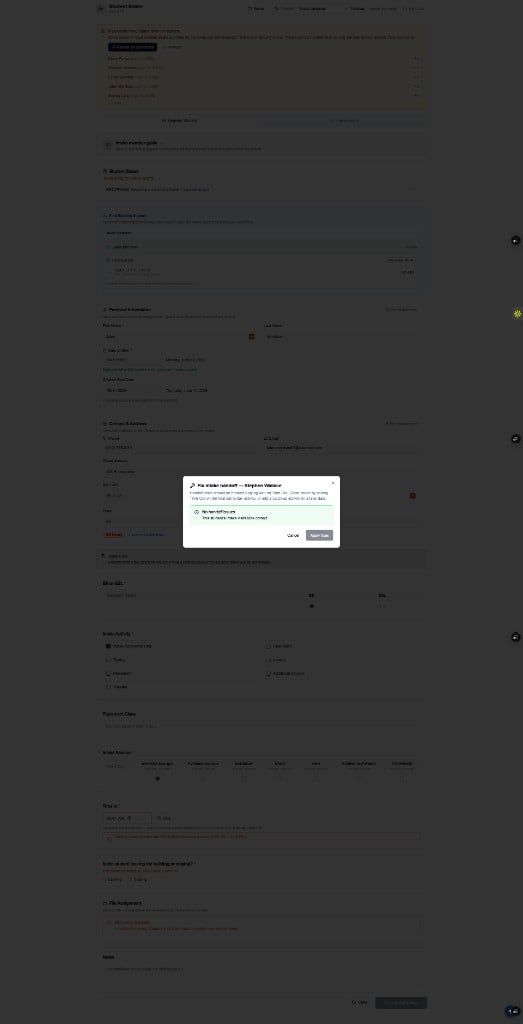 Use **Fix** to:
1. Correct **session hours** (change session and/or Time In / Time Out)
2. Fix **handoff** issues (early Time Out or missing final clock-out)
## Duplicate flag example
Use **Fix** to:
1. Correct **session hours** (change session and/or Time In / Time Out)
2. Fix **handoff** issues (early Time Out or missing final clock-out)
## Duplicate flag example
 ## Related pages
* [Address and NYC verification](/reference/address-and-verification)
* [Labels and scanning](/workflows/labels-and-scanning)
* [Duplicates and siblings](/workflows/duplicates-and-siblings)
* [Archive and school year](/storage/archive-and-school-year)
## Related pages
* [Address and NYC verification](/reference/address-and-verification)
* [Labels and scanning](/workflows/labels-and-scanning)
* [Duplicates and siblings](/workflows/duplicates-and-siblings)
* [Archive and school year](/storage/archive-and-school-year)