> ## Documentation Index
> Fetch the complete documentation index at: https://docs.nycadultedlabels.nyc/llms.txt
> Use this file to discover all available pages before exploring further.
# Cabinets and drawers
> Active file storage — drawers, sections, labels, moves, capacity planning, and room map.
## Cabinets page
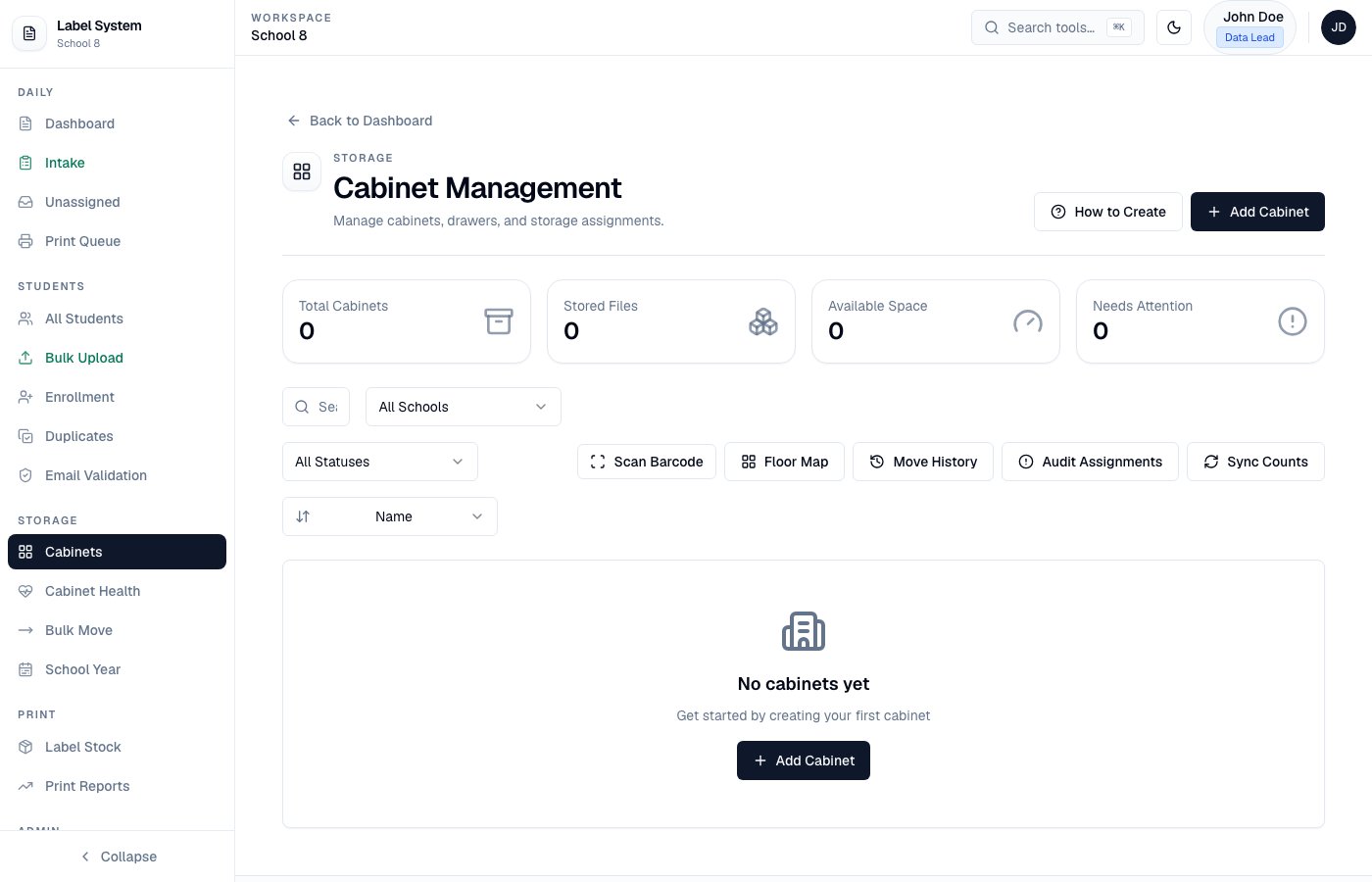
**Storage → Cabinets** (`/admin/cabinets`) manages where student files live.
* Create cabinets with multiple drawers
* Drawer capacity presets: **100**, **200**, or **400** files
* Filter by school, capacity status, usage, and name
* **Smart Fill** creates standard cabinet structures quickly (default **400** per drawer)
* **Sync Counts** recalculates drawer counts and refreshes automatic **sections**
* Renaming a drawer keeps its stable ID so students are **not** orphaned
 ## Automatic sections
Each drawer is split into **8 sections** (about **1/8** of capacity) for physical filing:
| Drawer capacity | Approx. per section | Labels |
| --------------- | ------------------- | ------------- |
| 400 | 50 | Section 01–08 |
| 200 | 25 | Section 01–08 |
| 100 | \~13 | Section 01–08 |
Sections are assigned **automatically** when a student is stored (intake, create, bulk upload, or move). They are **not** shown on the Intake form.
Data Leads see them:
* On cabinet cards (section occupancy grid under each drawer)
* On the Dashboard location column: **Cab** / **Draw** / **Sec**
* In the drawer **Roster** (click a drawer name or section chip)
After upgrading, click **Sync Counts** once so existing files get Section 01–08 assigned by created order within each drawer.
## Printable storage labels
On an **active** cabinet, use the tag icon to print **cabinet / drawer / section** labels for physical furniture (same idea as archive-box QR labels). Attach them to the cabinet face, drawer fronts, and section dividers.
## Drawer roster (audit)
Open **Roster** on a cabinet or click a drawer / section chip to:
* View students (A–Z)
* **Print** or download **CSV** for a physical audit
* **Reassign** a student to another cabinet/drawer
* Use **By section (drag)** to move a file between Section 01–08 inside the same drawer (logged in Move History)
## Locked drawers (“do not fill”)
In Add/Edit Cabinet, mark a drawer **Do not fill (locked)**. Locked drawers:
* Are skipped by Smart Fill / next open slot
* Cannot be chosen as a move target
* Keep existing files in place
Use this when a drawer is damaged, reserved, or temporarily out of service.
## Capacity planning
Each active cabinet card shows recent fill rate and **\~weeks left** at that rate. If the cabinet would fill **before the next typical peak** (Sep 15 or Jan 15), a warning appears at the top of the page and on the card.
## Floor / room map
**Floor Map** lets you drag cabinets onto a grid (row/column) that matches the room layout. Positions save immediately. Click a placed cabinet to jump to its card. Double-click a cell to clear its position.
Optional row/column fields are also on the Edit Cabinet form.
## Scan to locate
Use **Scan Barcode** on the Cabinets page (or enter a Label ID). The matching cabinet / drawer / section is highlighted so staff can find the physical file quickly.
## Move history
**Move History** lists who moved which students, from → to, and when (also mirrored in Audit Logs). Export **CSV** for records.
Moves are blocked into **archived** cabinets. Bulk moves always set **drawerSection**. When the database supports it, bulk moves run in a transaction.
## Fix from Health / Unassigned
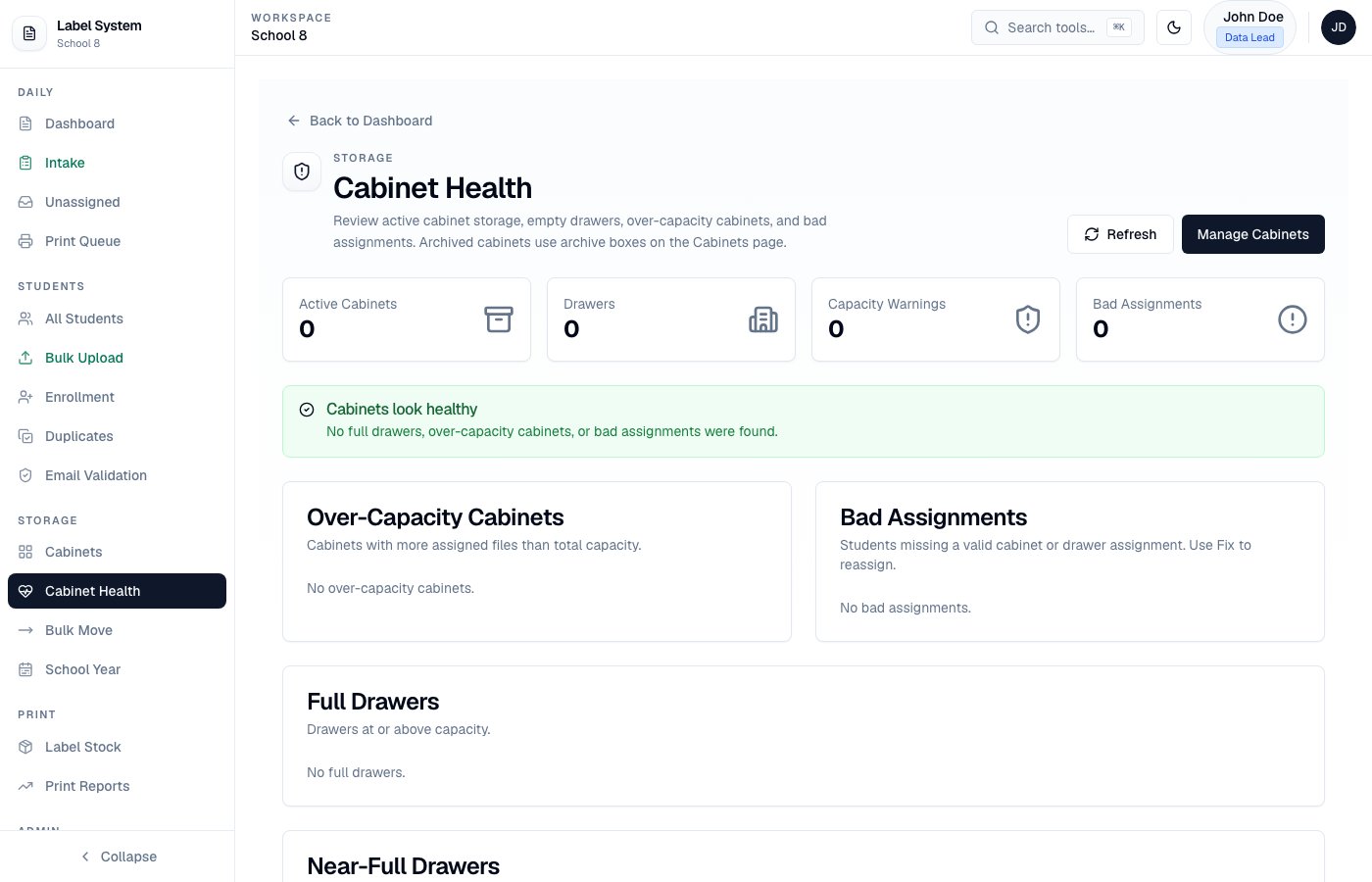
**Cabinet Health** and **Unassigned** support one-click **assign to next open slot** or pick a cabinet/drawer — not diagnose-only.
## Cabinet Health
**Storage → Cabinet Health** shows full, near-full, empty, and over-capacity drawers. Archived students with a valid archive box are excluded from "missing cabinet" warnings.
## Automatic sections
Each drawer is split into **8 sections** (about **1/8** of capacity) for physical filing:
| Drawer capacity | Approx. per section | Labels |
| --------------- | ------------------- | ------------- |
| 400 | 50 | Section 01–08 |
| 200 | 25 | Section 01–08 |
| 100 | \~13 | Section 01–08 |
Sections are assigned **automatically** when a student is stored (intake, create, bulk upload, or move). They are **not** shown on the Intake form.
Data Leads see them:
* On cabinet cards (section occupancy grid under each drawer)
* On the Dashboard location column: **Cab** / **Draw** / **Sec**
* In the drawer **Roster** (click a drawer name or section chip)
After upgrading, click **Sync Counts** once so existing files get Section 01–08 assigned by created order within each drawer.
## Printable storage labels
On an **active** cabinet, use the tag icon to print **cabinet / drawer / section** labels for physical furniture (same idea as archive-box QR labels). Attach them to the cabinet face, drawer fronts, and section dividers.
## Drawer roster (audit)
Open **Roster** on a cabinet or click a drawer / section chip to:
* View students (A–Z)
* **Print** or download **CSV** for a physical audit
* **Reassign** a student to another cabinet/drawer
* Use **By section (drag)** to move a file between Section 01–08 inside the same drawer (logged in Move History)
## Locked drawers (“do not fill”)
In Add/Edit Cabinet, mark a drawer **Do not fill (locked)**. Locked drawers:
* Are skipped by Smart Fill / next open slot
* Cannot be chosen as a move target
* Keep existing files in place
Use this when a drawer is damaged, reserved, or temporarily out of service.
## Capacity planning
Each active cabinet card shows recent fill rate and **\~weeks left** at that rate. If the cabinet would fill **before the next typical peak** (Sep 15 or Jan 15), a warning appears at the top of the page and on the card.
## Floor / room map
**Floor Map** lets you drag cabinets onto a grid (row/column) that matches the room layout. Positions save immediately. Click a placed cabinet to jump to its card. Double-click a cell to clear its position.
Optional row/column fields are also on the Edit Cabinet form.
## Scan to locate
Use **Scan Barcode** on the Cabinets page (or enter a Label ID). The matching cabinet / drawer / section is highlighted so staff can find the physical file quickly.
## Move history
**Move History** lists who moved which students, from → to, and when (also mirrored in Audit Logs). Export **CSV** for records.
Moves are blocked into **archived** cabinets. Bulk moves always set **drawerSection**. When the database supports it, bulk moves run in a transaction.
## Fix from Health / Unassigned
**Cabinet Health** and **Unassigned** support one-click **assign to next open slot** or pick a cabinet/drawer — not diagnose-only.
## Cabinet Health
**Storage → Cabinet Health** shows full, near-full, empty, and over-capacity drawers. Archived students with a valid archive box are excluded from "missing cabinet" warnings.
 ## Unassigned queue
**Daily → Unassigned** lists students missing a valid cabinet or drawer assignment.
## Bulk move
**Storage → Bulk Move** moves selected students with capacity validation before saving. Moved students receive a new section in the target drawer. Locked drawers and archived cabinets are not valid targets.
## Archived files
Archived students live in **archive boxes**, not active drawers. When they return through Intake, staff see the box location and QR instead of a new drawer assignment — see [Intake → Returning archived students](/workflows/intake#returning-archived-students).
For packing preview, partial archive, and box labels, see [Archive and school year](/storage/archive-and-school-year).
## Unassigned queue
**Daily → Unassigned** lists students missing a valid cabinet or drawer assignment.
## Bulk move
**Storage → Bulk Move** moves selected students with capacity validation before saving. Moved students receive a new section in the target drawer. Locked drawers and archived cabinets are not valid targets.
## Archived files
Archived students live in **archive boxes**, not active drawers. When they return through Intake, staff see the box location and QR instead of a new drawer assignment — see [Intake → Returning archived students](/workflows/intake#returning-archived-students).
For packing preview, partial archive, and box labels, see [Archive and school year](/storage/archive-and-school-year).