> ## Documentation Index
> Fetch the complete documentation index at: https://docs.nycadultedlabels.nyc/llms.txt
> Use this file to discover all available pages before exploring further.
# Quickstart
> Sign in, pick your role, and complete your first task in a few minutes.
## 1. Sign in
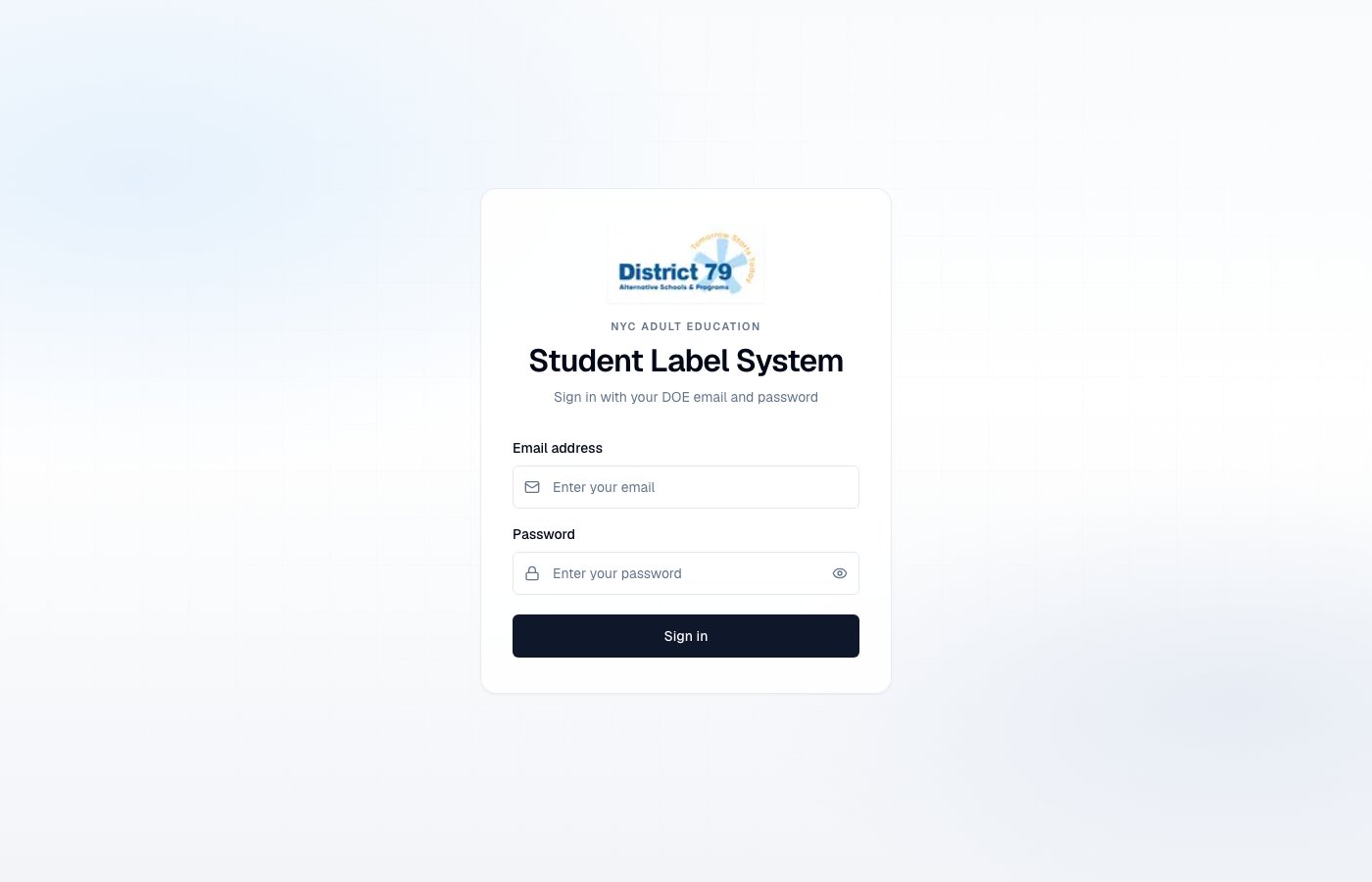
Go to [nycadultedlabels.nyc/auth/signin](https://nycadultedlabels.nyc/auth/signin) and sign in with your NYC DOE email and password, then your **MFA authenticator code**.
**MFA is required for every account** until DOE Single Sign-On is available. Set it up from **Profile** if prompted. See [User roles → Security](/user-roles#security-requirement--mfa-until-sso).
Your role determines which pages you can access:
| Role | Primary starting point |
| ------------- | ------------------------------------------------------- |
| Intake Member | `/intake` (full-screen intake) |
| Data Member | Dashboard (`/`) with left sidebar |
| Data Lead | Dashboard + left sidebar tools |
| Admin | All schools + left sidebar (including Users / Settings) |
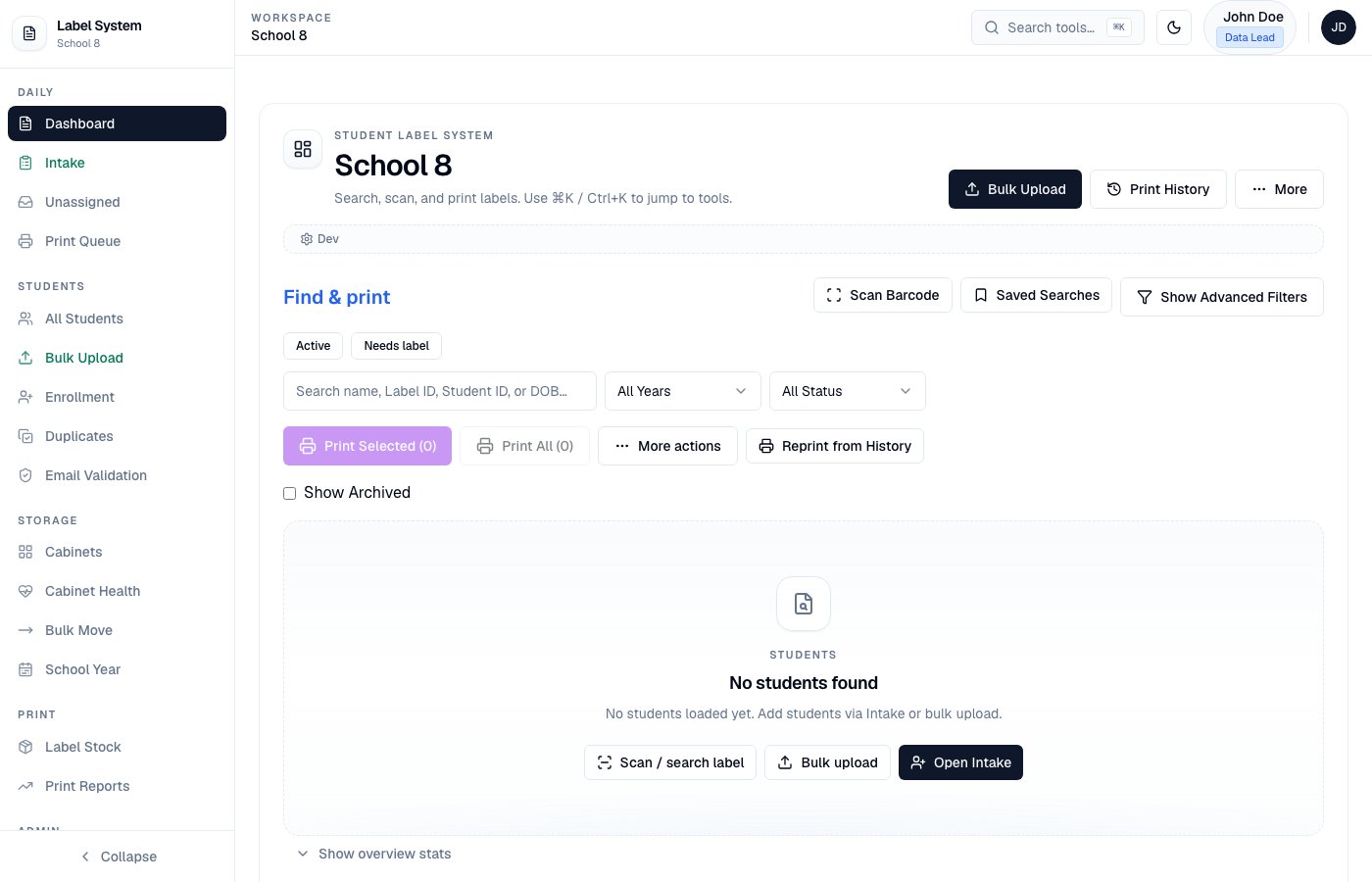
After sign-in (except Intake Members), use the **left sidebar** to jump between Dashboard, Intake, Cabinets, Print Queue, and other tools. On mobile, open it from the **menu** button in the top bar. Press **⌘K** / **Ctrl+K** for the command palette.
See [User roles](/user-roles) for the full permission matrix.
 ## 2. Complete your first task
You land on `/intake` after sign-in.
* **NEW** — enter name, DOB (must be **21+** for BE/ESL), address, session, and times
* **RETURNING** — search the student, then record today's visit only
Time In / Time Out must fall inside the selected intake session window or submit is blocked.
Confirm what was saved. Under-21 students get a copyable [P2G](https://p2g.nyc/contact/) referral message. Labels are printed later in batches from the Dashboard.
## 2. Complete your first task
You land on `/intake` after sign-in.
* **NEW** — enter name, DOB (must be **21+** for BE/ESL), address, session, and times
* **RETURNING** — search the student, then record today's visit only
Time In / Time Out must fall inside the selected intake session window or submit is blocked.
Confirm what was saved. Under-21 students get a copyable [P2G](https://p2g.nyc/contact/) referral message. Labels are printed later in batches from the Dashboard.
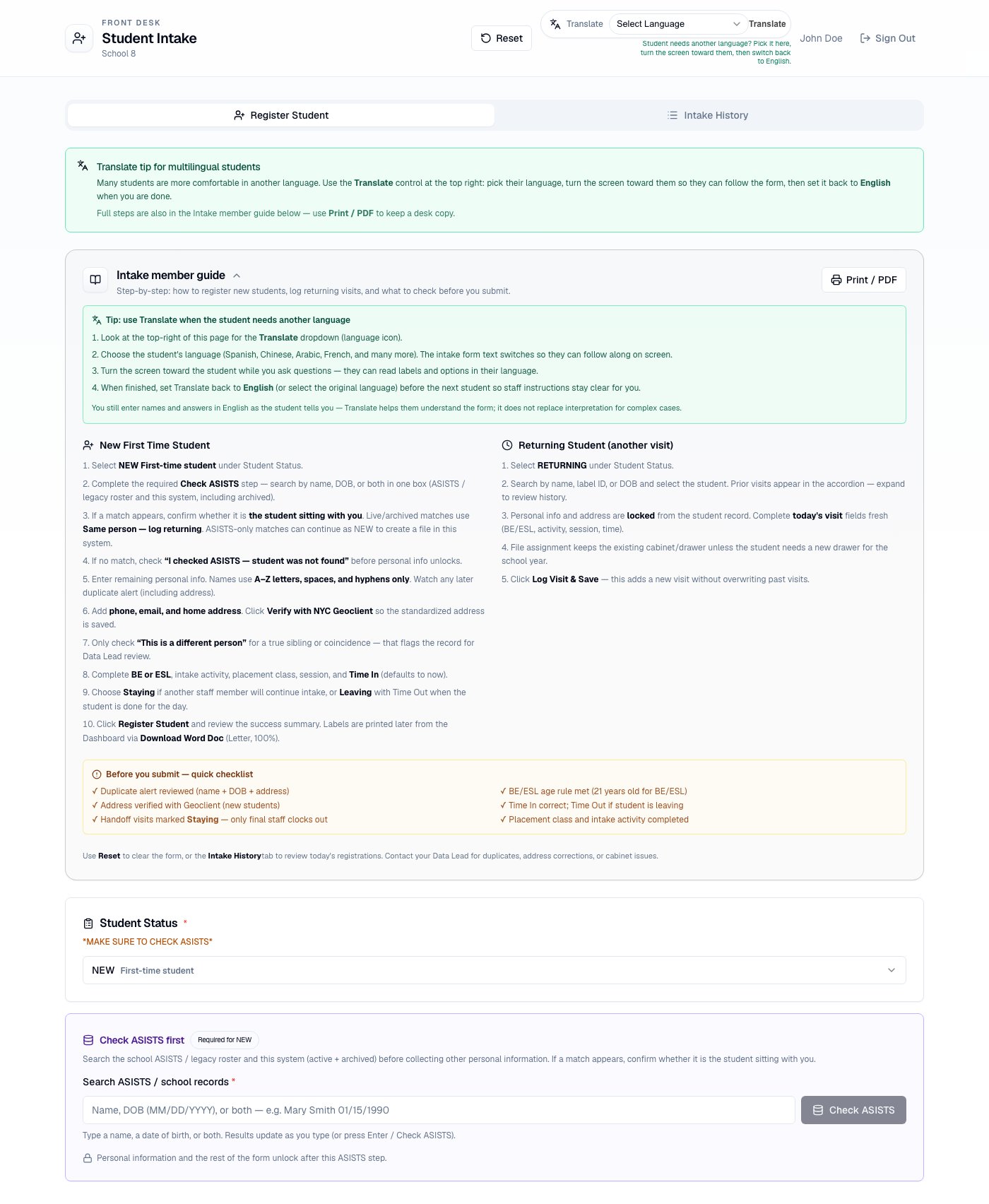 Search by name, Label ID, or Student ID.
Select students → open print preview → **Download Word Doc** → print from Word on **Letter** at **100%** (Avery **5163** or **94205**). Labels show **Last, First**, DOB, a 5-digit batch sequence, barcode, and QR.
In the left sidebar open **Storage → Cabinet Health** and resolve unassigned students or full drawers. Drawers use sections **01–08** automatically — run **Sync Counts** on Cabinets after upgrades if sections are missing.
**Students → Bulk Upload** previews CSV rows, flags duplicates/date errors, and lets you remove bad rows before import.
Open **Students → Enrollment** and filter to intake time issues when needed.
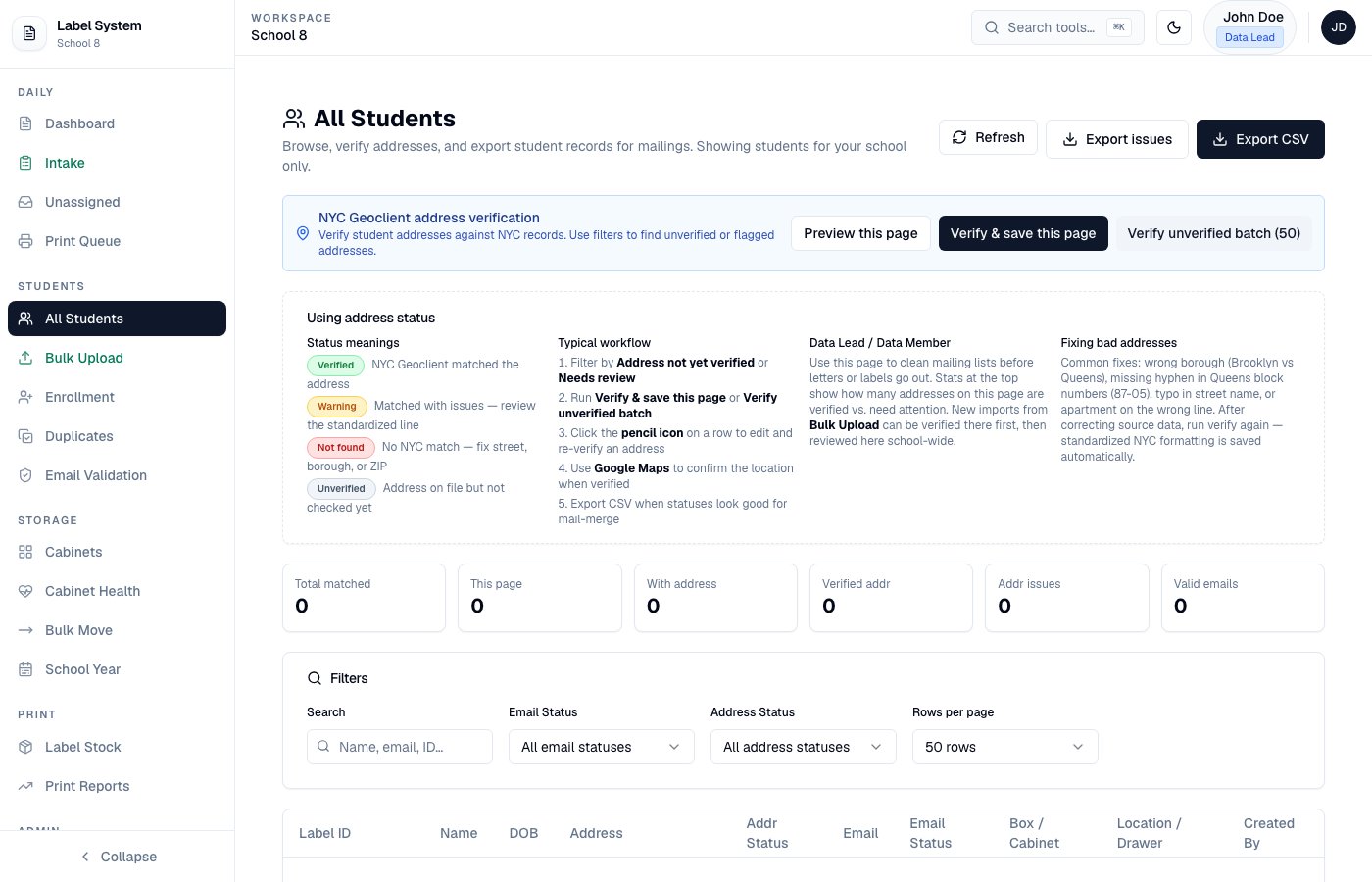
Use **Students → All Students** to run NYC Geoclient verify on a page or batch.
Search by name, Label ID, or Student ID.
Select students → open print preview → **Download Word Doc** → print from Word on **Letter** at **100%** (Avery **5163** or **94205**). Labels show **Last, First**, DOB, a 5-digit batch sequence, barcode, and QR.
In the left sidebar open **Storage → Cabinet Health** and resolve unassigned students or full drawers. Drawers use sections **01–08** automatically — run **Sync Counts** on Cabinets after upgrades if sections are missing.
**Students → Bulk Upload** previews CSV rows, flags duplicates/date errors, and lets you remove bad rows before import.
Open **Students → Enrollment** and filter to intake time issues when needed.
Use **Students → All Students** to run NYC Geoclient verify on a page or batch.
 ## 3. Learn the ID system
Every student has two IDs:
* **Label ID** — short ID on the barcode and QR (e.g. `1979-JJ-0000001`)
* **Student ID** — demographic format for reporting (e.g. `JARAMILLOJAVIERR0119790522`)
Details: [Dual ID system](/reference/dual-id-system)
## 4. Need help?
* Full guide: start with [Intake workflow](/workflows/intake)
* In-app guide: [App documentation](https://nycadultedlabels.nyc/docs)
* Contact: [jjaramillo7@schools.nyc.gov](mailto:jjaramillo7@schools.nyc.gov)
## 3. Learn the ID system
Every student has two IDs:
* **Label ID** — short ID on the barcode and QR (e.g. `1979-JJ-0000001`)
* **Student ID** — demographic format for reporting (e.g. `JARAMILLOJAVIERR0119790522`)
Details: [Dual ID system](/reference/dual-id-system)
## 4. Need help?
* Full guide: start with [Intake workflow](/workflows/intake)
* In-app guide: [App documentation](https://nycadultedlabels.nyc/docs)
* Contact: [jjaramillo7@schools.nyc.gov](mailto:jjaramillo7@schools.nyc.gov)